Make your own talking cartoons, right in your browser
Updated
Animperia is a cartoon maker for people who want to make their own animated cartoons: characters you draw, scenes you build, and lines you record yourself, with mouths that move to the words. It runs in a desktop browser on Windows, Mac or Linux, and it's free during the beta.
To be clear about what it isn't: Animperia doesn't turn photos into cartoons, and it doesn't animate a selfie or a stock avatar. You make the cartoon, from the first drawing to the finished video.
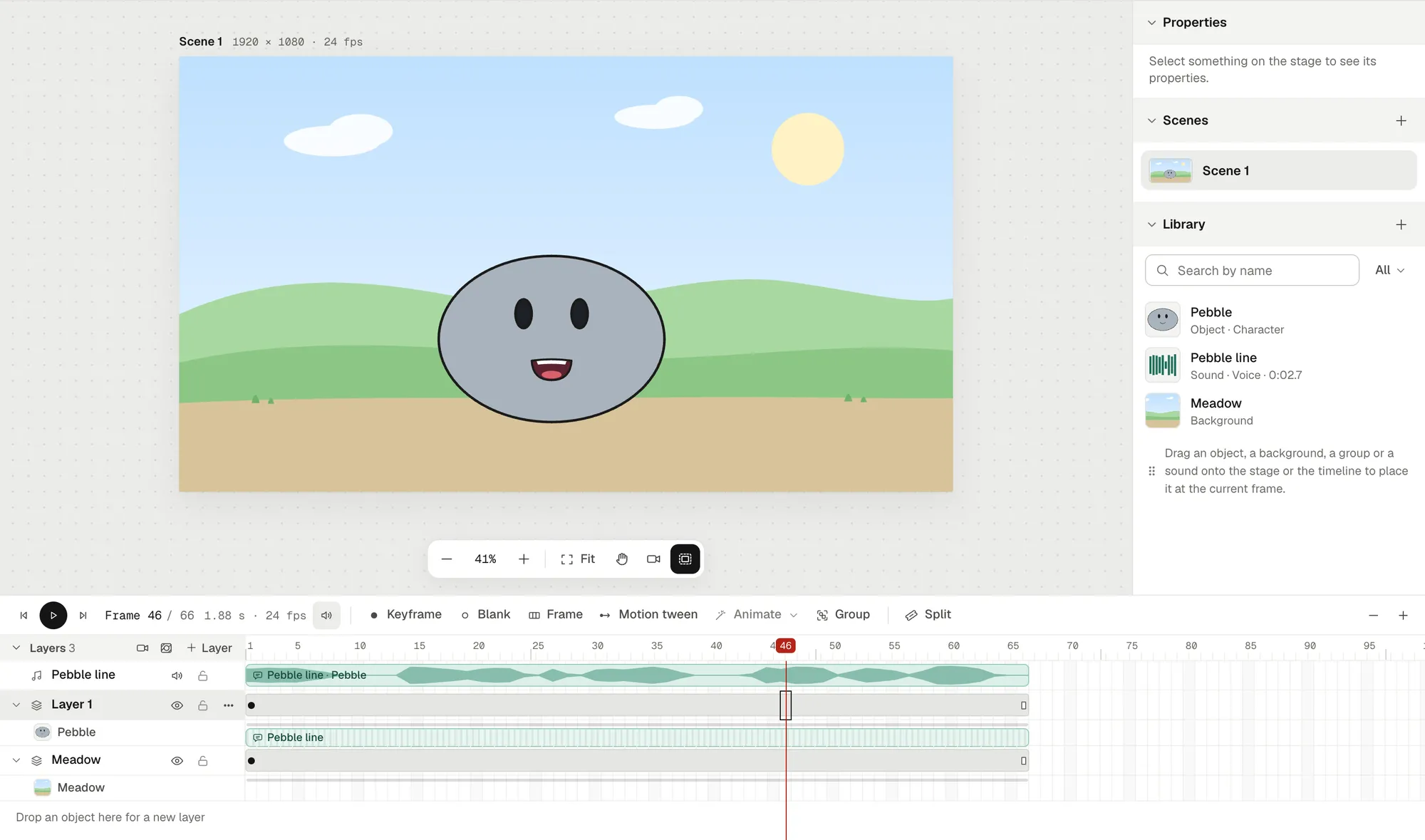
What you can make
- Talking skits and object shows: a cast of characters, each with a voice of its own, in short scenes.
- Shorts, Reels and TikToks: pick the portrait canvas (9:16), and every scene is shaped for a phone screen.
- Cartoon clips for school projects, videos and streams: export an MP4 with sound, a GIF, or a see-through video to put over other footage.
Make a character talk in six steps
1. Start a project
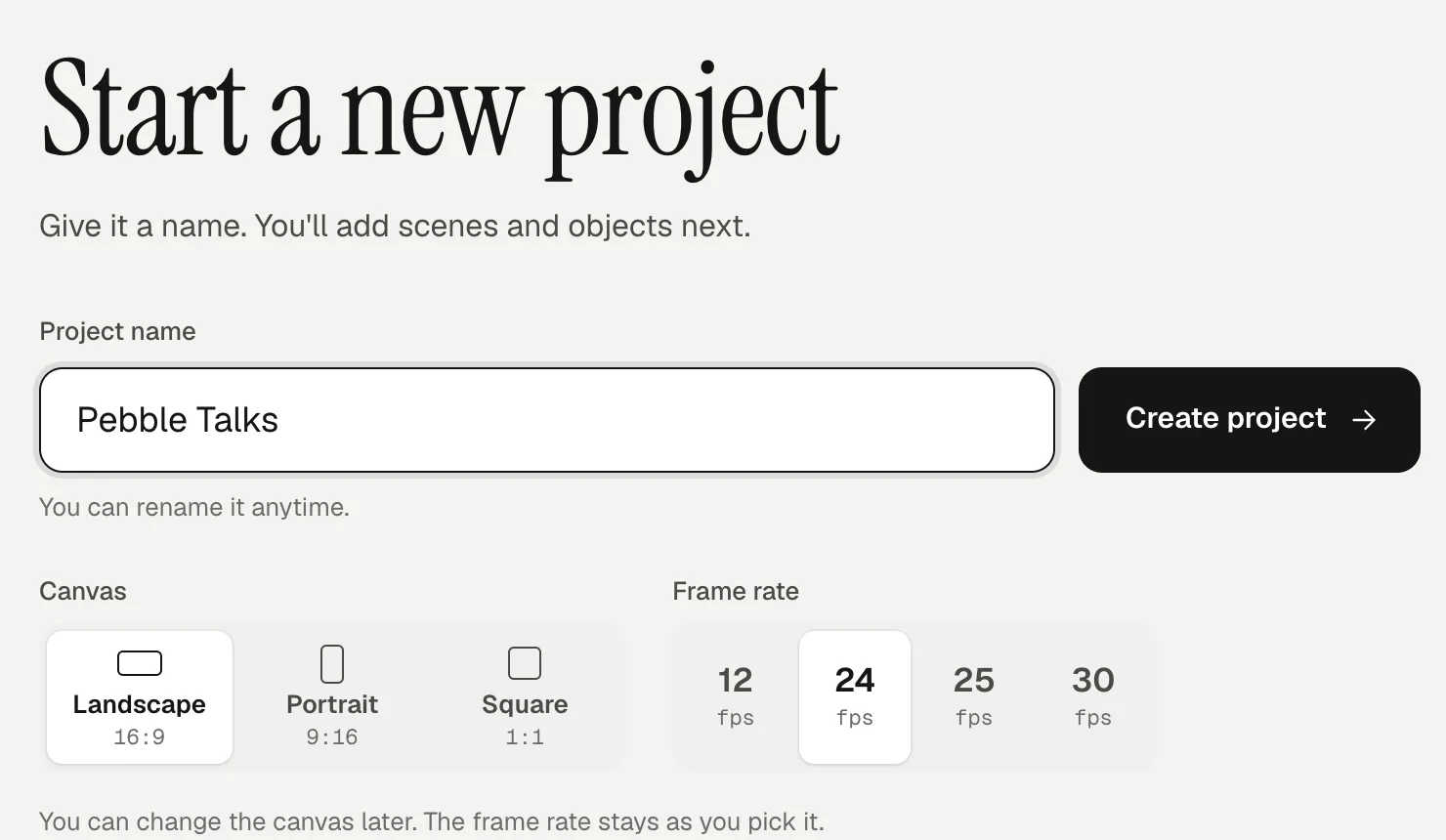
Give it a name and pick a canvas: landscape (16:9), portrait (9:16) or square (1:1), and a frame rate of 12, 24, 25 or 30 frames a second. You can change the canvas later.
2. Draw your character
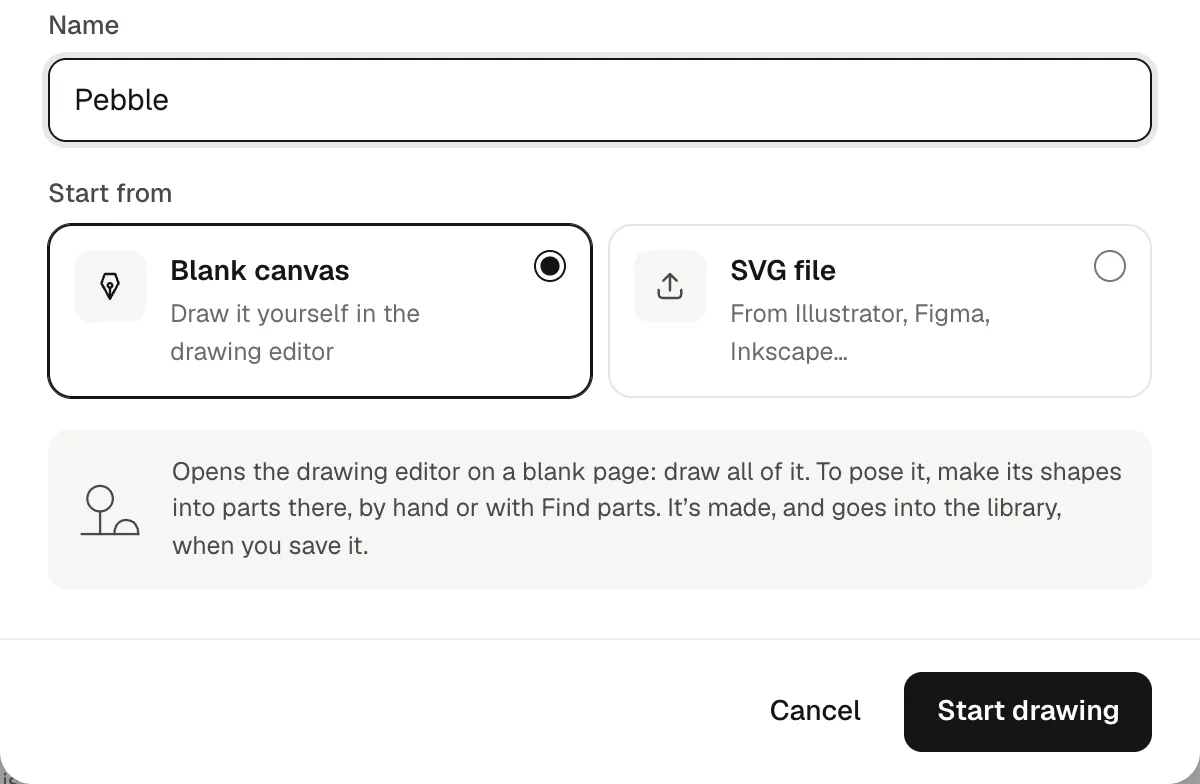
In the library, click +, pick Object, and choose Blank canvas to draw it yourself: a pen, a pencil, a pressure-sensitive brush, shapes, a fill bucket and an eraser are all there. Or choose SVG file to bring in a drawing from Illustrator, Inkscape or Figma.
3. Give it a mouth
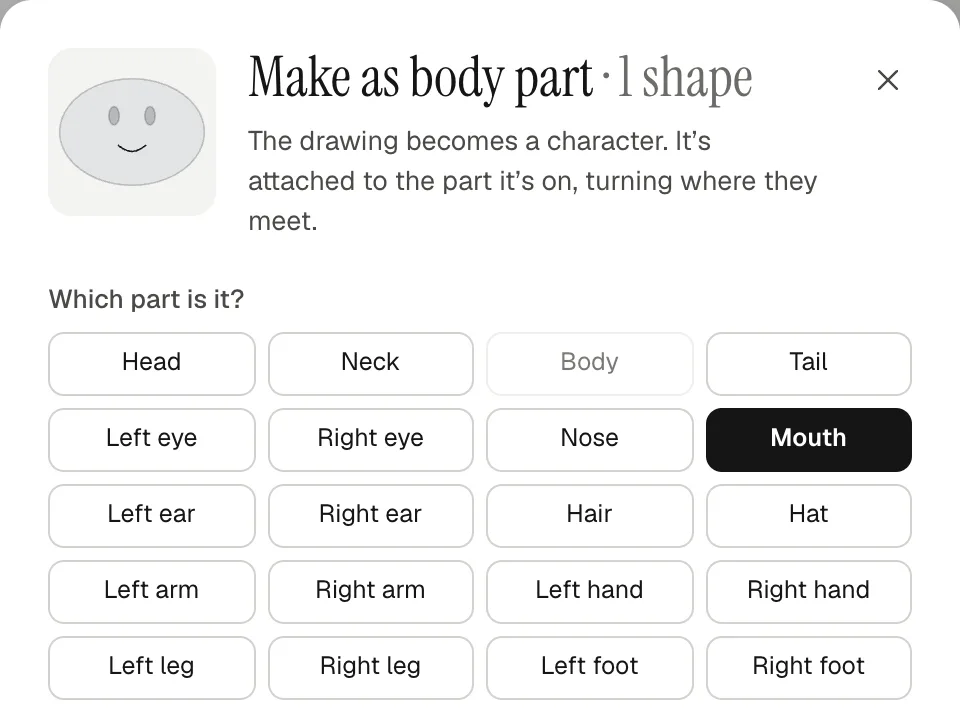
Select the shapes of the mouth, press ⌘G (Ctrl+G on Windows) or click Make as body part above the canvas, and choose Mouth. Your drawing becomes a character, and the mouth becomes the part that talks. Make arms, legs or a head into parts the same way, and you can pose them by their joints later.
4. Record your voice
Record your lines with any app, even your phone's voice recorder, and upload them to the library with + and Sound. MP3, WAV, M4A and other common formats work. If the recording hisses, Remove noise cleans it with one click. To play several characters yourself, give each one a voice of its own: twelve ready-made voices, from Squeaky to Giant, tuned with sliders.
5. Drop the line on the character
Drag the sound onto your character on the stage. The line goes on the timeline, and the character's mouth moves with the words. For a language other than English, right-click the character, pick Give a voice… and choose Other language. The mouth shapes start out plain, made from the mouth you drew, and you can redraw each one by hand. Learn more about lip sync, or read how to lip-sync a character with a free mouth chart.
6. Animate the rest and export
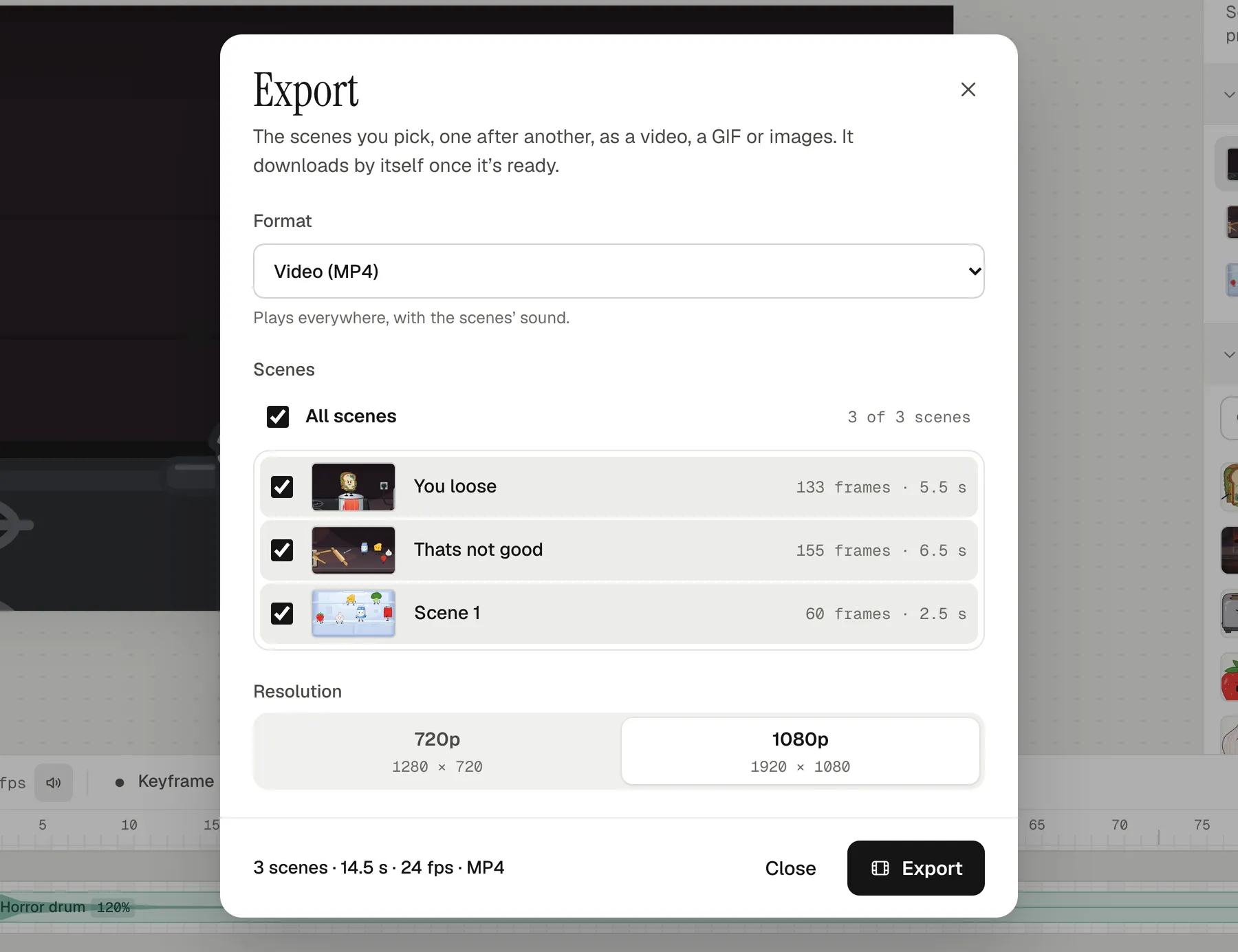
Move characters with keyframes and motion tweens, pose them frame by frame in their own animations (a walk, a wave, a blink), add a background, music and a camera that pans and zooms. When the scene is ready, Export makes an MP4 at 720p or 1080p with all the sound mixed in, and it downloads by itself.
Animperia compared with photo-to-cartoon apps
Search for a cartoon maker and you'll find two kinds of tools: apps that turn a photo into a cartoon picture or make a ready-made avatar talk, and studios where you make the cartoon yourself. Animperia is the second kind.
| Animperia | Photo-to-cartoon and avatar apps | |
|---|---|---|
| Where the character comes from | You draw it, or import your own SVG | A photo, or an avatar made for you |
| Who makes the motion | You: keyframes, poses, walk cycles, a camera | The app |
| What you keep | Characters and scenes you can edit and reuse | The finished clip |
If you want a quick avatar, those apps are the faster choice. If you want a cartoon of your own, with characters that can come back in the next episode, that's what Animperia is for.
What you need
- A computer with a desktop browser on Windows, Mac or Linux. We test Animperia in Google Chrome. It isn't made for phones.
- An internet connection: your work is saved online as you go.
- Something to record with: a headset, a USB microphone or your phone.
- An account: sign up with your email. Accounts are for people 13 and over.
Questions
Is it free?
Yes. Animperia is free during the beta. Sign up with your email, and while the beta has room, you get a link to set your password and start.
Can I make a cartoon character talk with my own voice?
Yes. Record your lines, upload them, and drop each one on the character that says it. The mouth follows your words, and a voice effect can change how you sound.
Does it turn photos into cartoons?
No. You can use a photo or a painting as a background, but Animperia doesn't convert photos into cartoon characters. You draw your characters, or import them as SVG files.
Do I need to be good at drawing?
No. Simple shapes go a long way: the pebble above is three ellipses and a curve. You can also import artwork from another app as SVG. An optional AI helper can draw a character for you from a description, but everything can be done by hand.
Can I make cartoons on my phone?
Not yet. Animperia is made for a computer's browser.
Can I post my cartoon on YouTube or TikTok?
Yes. Export an MP4, then upload it like any other video. For Shorts, Reels and TikTok, start the project on the portrait canvas.
Ready to make your first talking cartoon? Sign up for the beta: it's free while Animperia is in beta.