Automatic lip sync for your 2D characters
Updated
Lip-syncing a line by hand means listening to it frame by frame and picking a mouth for each sound. In Animperia, you drop the recording on your character instead: the voice is timed in a few seconds, and the mouth follows the words on the stage, while you scrub the timeline and in the video you export. You keep full control: every mouth shape is a drawing you can redo, and every line has its own timing settings.
Animperia is a 2D animation studio that runs in a desktop browser on Windows, Mac or Linux, so there's nothing to install. It's free during the beta.
How it works
- Upload a recording. In the library, click + and pick Sound. MP3, WAV, OGG, M4A, FLAC and WebM files work, up to 50 MB. Record it with any app you like, even your phone's voice recorder.
- Drop it on a character. Drag the sound onto a character on the stage, or onto its row in the timeline. The sound goes on a layer of its own, and the clip names its speaker, such as Line 1 · Milk.
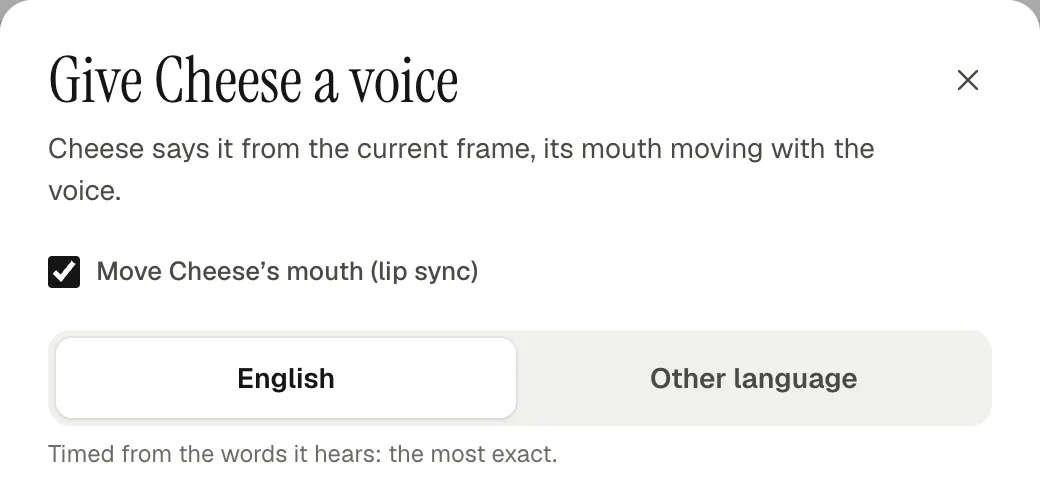
- Or use Give a voice. Right-click a character and pick Give a voice… to choose the language, pick a sound from the library or drop in a new recording, and type what it says.
- Watch the mouth move. The voice is timed once, on the server, usually in a few seconds. From then on, the mouth swaps between its mouth shapes in time with the words: when you press play, when you scrub the playhead a frame at a time and in every export.
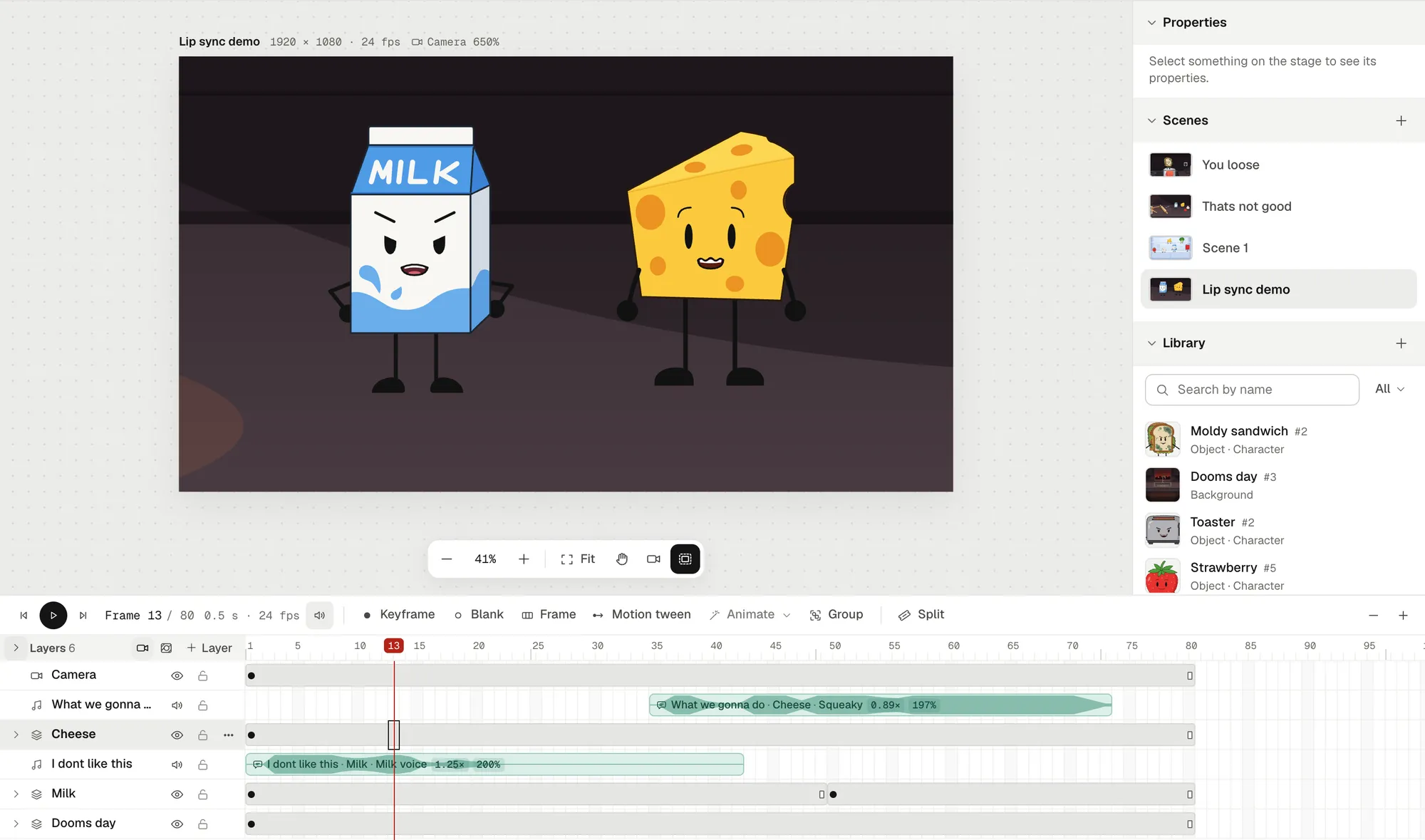
A voice is timed once and can be said by any character, in any of its variations. Until it's timed, the mouth opens and closes with the loudness of the sound, so you're never left with a frozen face.
English and other languages
For English, the timing comes from the words it hears, and it's most exact when you type the line under What it says. For any other language, pick Other language: the voice is then timed by its sounds rather than its words, which works whatever the language is.
Mouth shapes you can redraw
Each character talks with eight mouth shapes, plus its mouth as you drew it for silences:
| Mouth shape | Used for |
|---|---|
| Closed | M, B and P |
| Teeth | Most consonants, and EE |
| Open | EH and AE, as in men and bat |
| Wide | AA, as in father |
| Round | AO and ER, as in off and bird |
| Pucker | OO, OW and W |
| F V | F and V |
| L | A long L |
| Rest | Silence: the mouth as drawn |
When you first give a character a voice, it talks with plain mouth shapes made from its own mouth: same place, same line color and weight. To make them yours, open the character in the drawing editor, expand Mouth shapes under its mouth in the part list, and redraw any of them with the same tools you used for the rest of the character. Talk test plays them in a loop so you can check how they flow. Each variation of a character keeps its own set, so a side view can have side-view mouths.
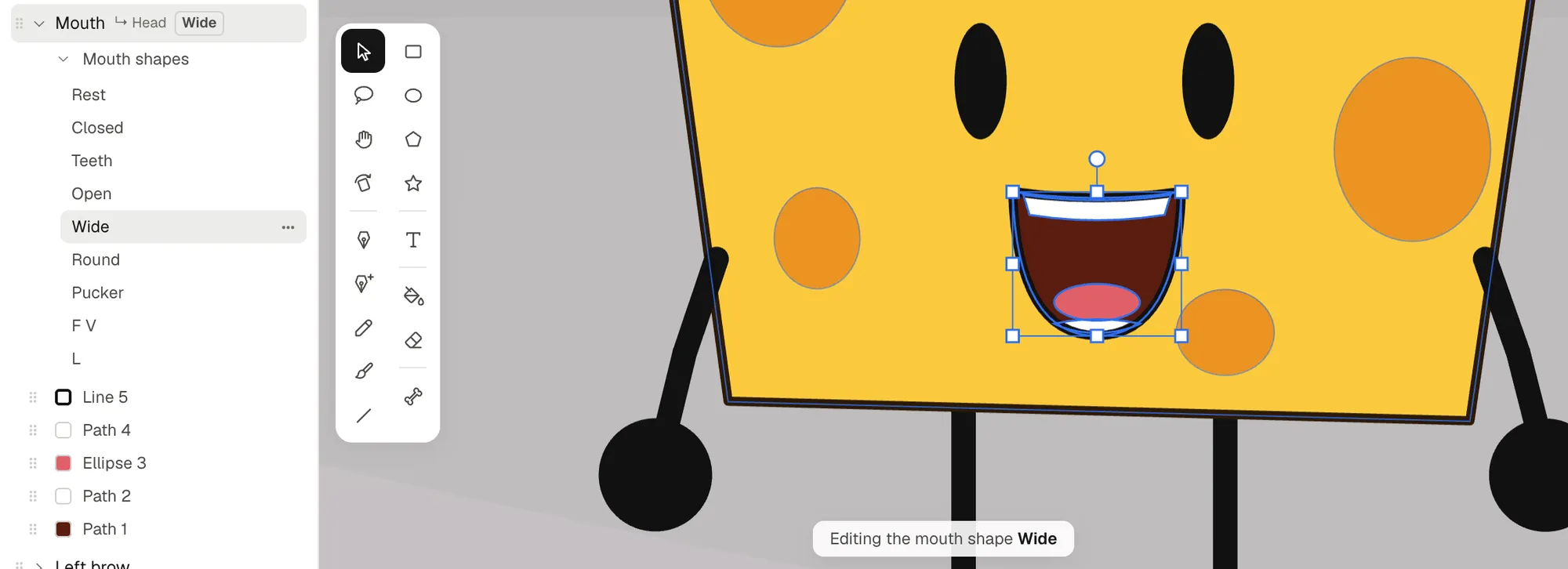
If you'd rather not draw them, an optional AI helper can draw a set in your character's style. Everything can be done by hand, and you can redraw any shape it makes.
New to mouth shapes? The lip sync animation guide has a free mouth chart and explains which shape goes with which sound.
Fine-tune each line
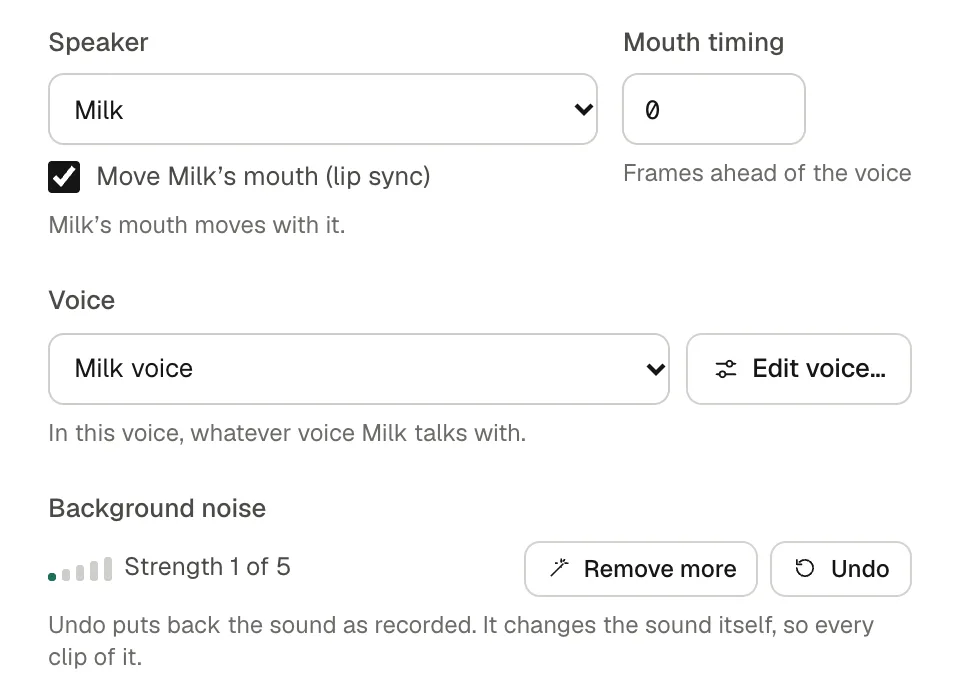
Double-click a voice clip on the timeline, or right-click it and pick Options…, to adjust it:
- Speaker: hand the line to another character.
- Mouth timing: move the mouth up to 5 frames ahead of the voice, or behind it. Many animators put the mouth a frame or two early, so the shape is there as the sound arrives.
- Lip sync off for this line: untick the lip sync box (Move Milk’s mouth) when the speaker is off screen, turned away, or already has a mouth movement in one of its animations. The character still says the line in its own voice.
- Volume and speed: from silent to twice as loud, and from 0.25× to 4× speed with the pitch kept. The mouth follows the new speed.
- Trim, split and fades: drag the clip's edges, cut it in two with Split (B), and fade it in or out.
Give each character a voice of its own
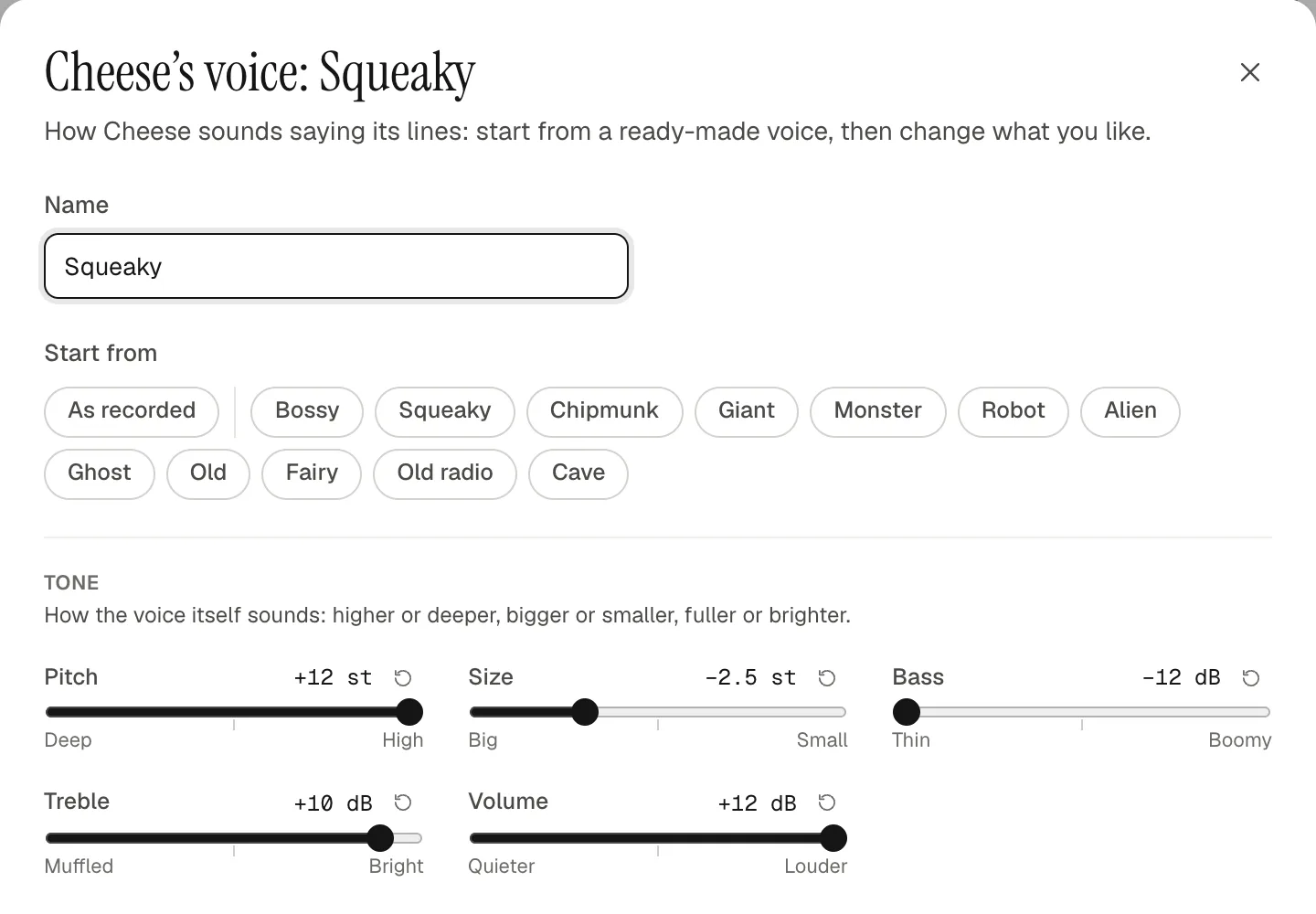
One recording can sound bossy from a toaster and squeaky from a piece of cheese. A character's Voices start from twelve ready-made voices (Bossy, Squeaky, Chipmunk, Giant, Monster, Robot, Alien, Ghost, Old, Fairy, Old radio and Cave) or from the recording as it is. Sliders then tune the pitch, size, bass, treble and volume, and add growl, a robot buzz, wobble, a whisper, an echo or a radio sound. Try it on plays a sound of the library in that voice as you move the sliders.
None of these settings shift anything in time, so the mouth stays in step with the words.
Clean up a noisy recording
A cheap microphone adds a steady hiss or hum. Remove noise, in a sound's drawer or in a clip's options, takes it out on the server and plays the result right away. Remove more goes up to strength 5, Undo steps back, and Original plays the recording as it was to compare. The cleaned sound stays exactly in time, so your clips and lip sync don't move.
Built on Rhubarb Lip Sync
Animperia times voices with Rhubarb Lip Sync, an open-source tool by Daniel Wolf, released under the MIT license. Our server runs version 1.14: it recognizes English speech with the PocketSphinx speech recognizer, and reads other languages phonetically. Rhubarb names its mouth shapes with the letters A to H, plus X for rest, and Animperia's eight shapes and Rest follow those letters in order, from Closed (A) to L (H).
Rhubarb is also a free command-line tool you can run on Windows, Mac or Linux, with plug-ins for After Effects and Spine, among others (GitHub, checked on 11 October 2026). Animperia runs it for you and puts the result straight onto your character's mouth.
What it doesn't do (yet)
- No live performance. There's no webcam face tracking and no live microphone input: you animate from recorded lines.
- No recording in the browser. Record with any app, then upload the file. There's no text-to-speech either.
- A character needs a mouth. Only a character with a part of the kind Mouth can talk. When you draw or import one, make its mouth a part, or name a group Mouth in your SVG file.
- Nothing talks inside a group. Groups have no sound layers, so characters talk on a scene's own timeline.
- English is the most exact. Other languages are timed by their sounds, which is good but less precise.
- Lines up to 10 minutes. Longer recordings can't be timed as one voice.
Other tools with automatic lip sync
Animperia isn't the only way to lip-sync automatically. As of 11 October 2026, Adobe Animate has Auto Lip-Sync for graphic symbols, Toon Boom Harmony detects mouth shapes from a sound, Cartoon Animator animates talking heads from an imported or recorded voice, and Adobe Character Animator lip-syncs puppets from a microphone (see how Animperia compares). Those are desktop apps. Animperia's lip sync works in a browser tab, on the characters you draw.
Questions
Is it free?
Yes. Animperia is free during the beta, lip sync included. Sign up with your email, and while the beta has room, you get a link to set your password and start.
Does it work on a Mac?
Yes. Animperia runs in a desktop browser on Mac, Windows and Linux computers, and we test it in Google Chrome. It isn't made for phones.
Can I use my own voice?
Yes, that's the idea. Record your lines with any app, upload them, and drop them on your characters. A voice effect can make one person sound like a whole cast.
Can I draw my own mouth shapes?
Yes. Every mouth shape is a drawing in the drawing editor, and each variation of a character has its own set.
Can I export it with sound?
Yes. Export makes an MP4 at 720p or 1080p with the scene's voices, music and sounds mixed in, and the mouths move exactly as they do on the stage. You can also export a GIF, a see-through video or PNG images.
Do I have to use AI?
No. The lip sync timing comes from Rhubarb Lip Sync, not a generative AI model, and you can draw, animate and voice everything by hand.
Want to try it on your own character? Sign up for the beta: Animperia is free while it's in beta.