How to export an animation with a transparent background
Updated
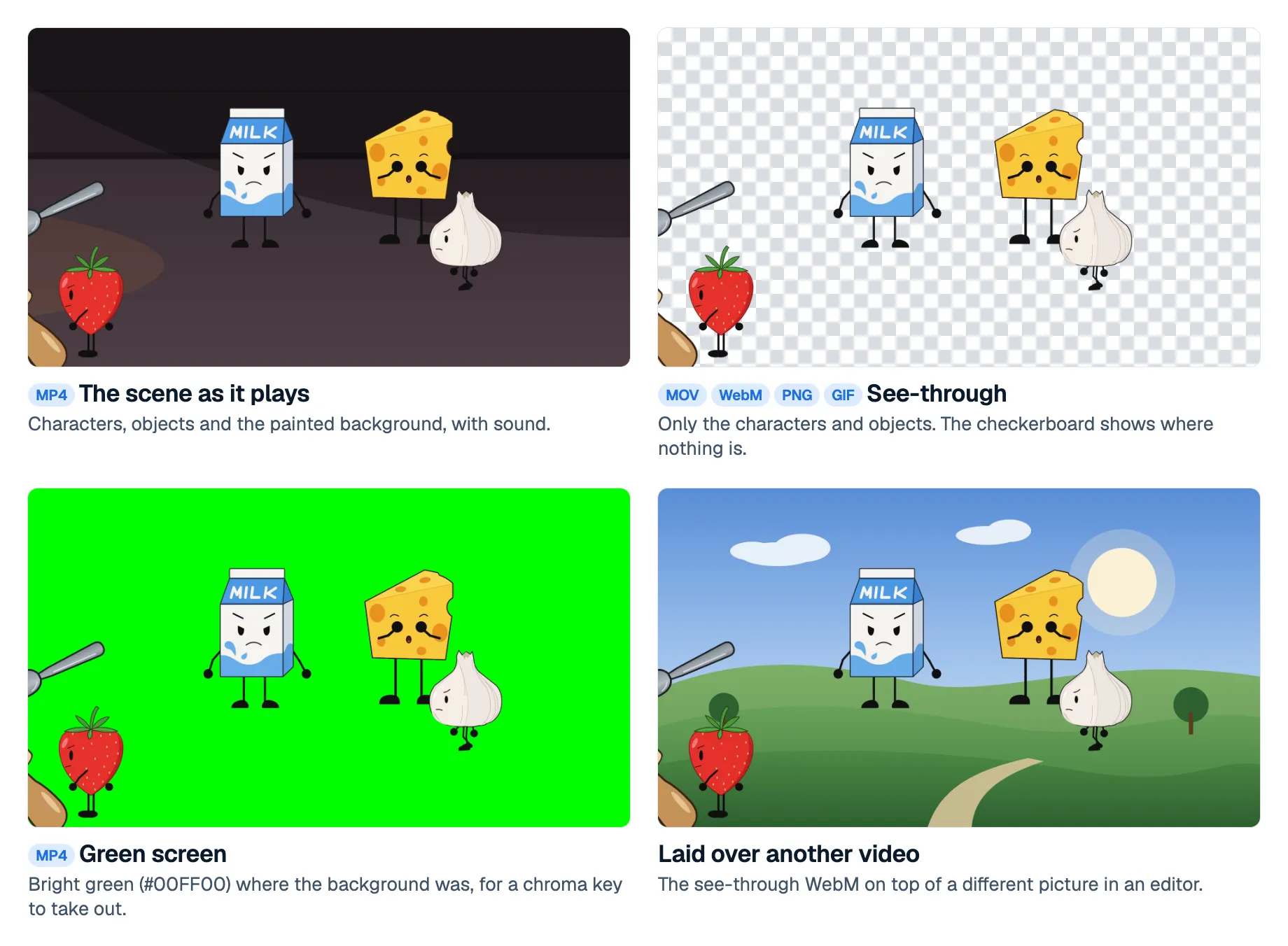
An animation with a transparent background is a video, or a set of images, where only your characters and objects are drawn and everything else is see-through. You can then lay it over other footage, a stream or a web page, and whatever is underneath shows through.
Animperia is a 2D animation studio that runs in your web browser, and it exports four kinds of see-through files from its Export button:
- a see-through MOV (Apple ProRes 4444) for video editors;
- a see-through WebM (VP9) for web pages and OBS;
- a green-screen MP4 for apps that remove a color with a chroma key, such as CapCut;
- PNG images, one per frame, in a ZIP.
This guide says which one to pick, how to export it, and what to watch for on the other side.
Which format to pick
Pick by where the animation is going next.
| Where it's going | Pick in Export | What you get |
|---|---|---|
| Premiere Pro, Final Cut Pro, DaVinci Resolve, After Effects | See-through video (MOV) | ProRes 4444 with a full alpha channel, soft edges included, and the scenes' sound. Big files |
| OBS, or a video on a web page | See-through video (WebM) | VP9 with an alpha channel and the sound, in a small file |
| CapCut, phone editors, anything with a chroma key | Green-screen video (MP4) | An ordinary MP4 with bright green where the background was, ready to key out |
| Compositing apps, game engines, frame-by-frame work | PNG images (ZIP) | Every frame as a see-through PNG, named after the scene and numbered, with no sound |
| A single picture, such as a sticker or a thumbnail | Still image (PNG), with See-through background ticked | One see-through frame |
| A looping sticker for a chat or a page | GIF, with See-through background ticked | A see-through GIF, with hard edges (see how to make a cartoon GIF) |
A rule of thumb: if the app can read a real alpha channel, give it the MOV or the WebM. Use the green screen only when the app can't, because a chroma key has to guess where the edges are.
What a see-through export keeps
A see-through export leaves out the scene's background color. It keeps everything you placed in the scene: characters, props, drawing layers and groups, all moving as they do on the stage, and seen through the scene's camera, so its zooms and pans are in the file too.
Background pictures are left out at first. In the Export dialog, Leave out backgrounds is ticked whenever the pictures are see-through. Untick it to keep them, for example when a background picture covers only part of the frame and you want the rest to stay see-through. In a green-screen MP4, the same box decides whether green shows where the background pictures would be.
Sound comes along in the MOV and the WebM whenever something plays in the scene, and in the green-screen MP4 always. PNG images and GIFs have no sound.
Soft edges are where the formats differ most. A glow, a shadow, a puff of smoke or the smooth outline of a drawing is partly see-through:
- The MOV and the WebM keep those pixels partly see-through, so a fire's glow blends over whatever is underneath.
- The green-screen MP4 mixes them with green, so the editor's chroma key has to decide how much of that green to remove, and soft edges can come out with a green fringe.
- A GIF can only show a pixel or hide it: Animperia leaves out pixels less than half opaque, so glows get a hard edge.
How to export it, step by step
- Open the scene you want in the editor. If you only need part of it, select those frames on the timeline first.
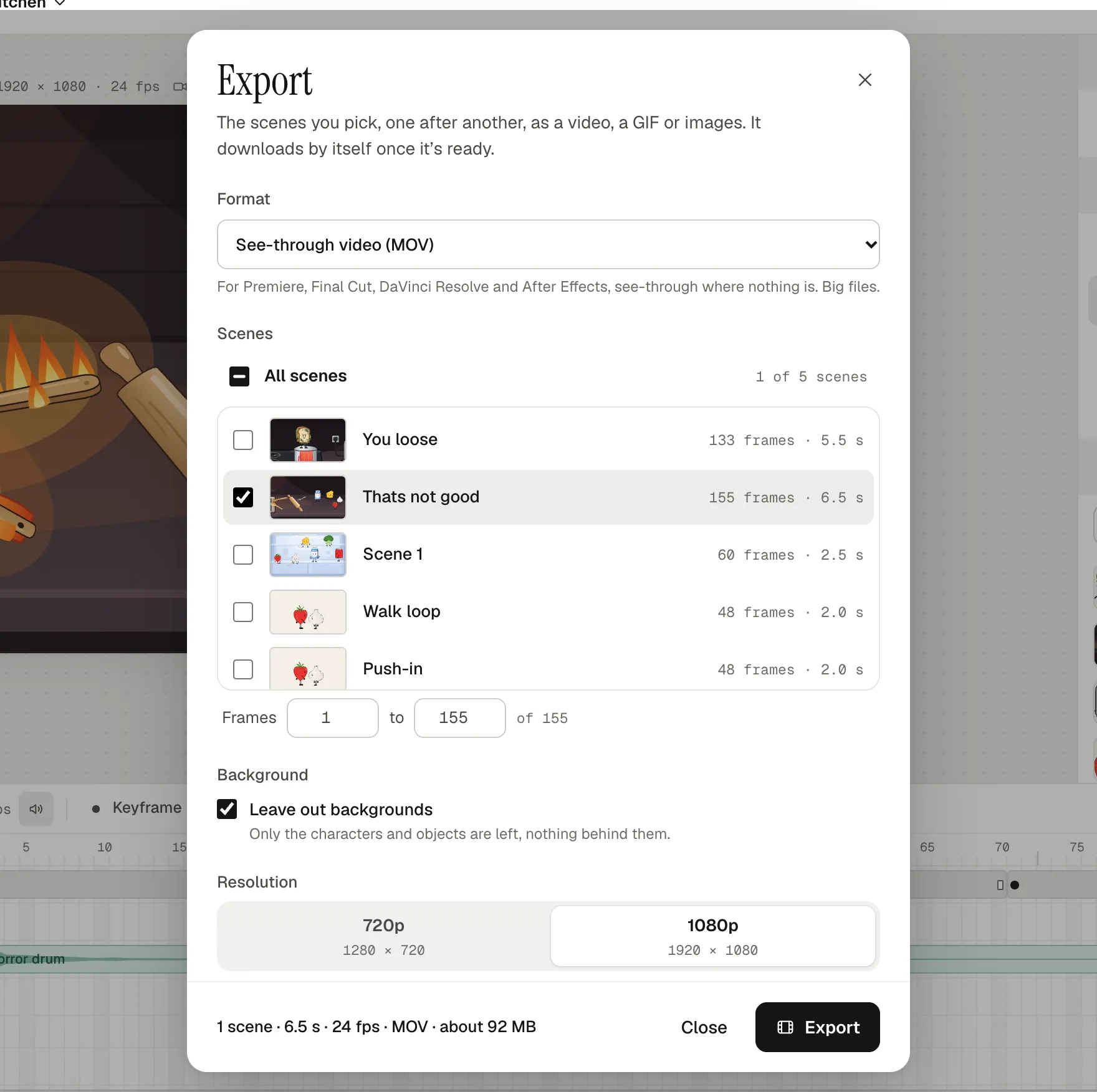
- Click Export in the top bar. Under Format, pick the kind of file from the table above.
- Tick the scenes. Several scenes play back to back, in the project's order. With one scene ticked, Frames … to … picks a stretch of it, filled in at first with the frames you selected.
- Check the background. For a PNG, a still or a GIF, tick See-through background. For every see-through file, decide whether to keep Leave out backgrounds ticked.
- Pick the resolution, 720p or 1080p. The dialog shows the size in pixels for your canvas: 1920 × 1080 for landscape, 1080 × 1920 for portrait, 1080 × 1080 for square, at 1080p.
- Click Export. The server renders it while you watch the progress, or close the dialog and keep working. When it's ready, the file downloads by itself and a note in the corner says so.
The server keeps the file only until it has downloaded once, and one nobody downloads is deleted after a day. There's no list of past exports, so export again whenever you need another copy.
How big the files get
ProRes 4444 is made for editing, not for sharing, and it's big. Here's what one 6.5-second scene with sound came to at 1080p and 24 fps, exported on 11 October 2026:
| Format | File size |
|---|---|
| Video (MP4) | 1.2 MB |
| Green-screen video (MP4) | 1.3 MB |
| See-through video (WebM) | 1.5 MB |
| See-through video (MOV) | 91 MB |
| PNG images (ZIP), 155 frames | 29 MB |
That's roughly 850 MB a minute for the MOV. The Export dialog's summary gives an estimate for a MOV before you start, such as "about 92 MB" for the scene above.
Using the file in other apps
Video editors: Premiere Pro, Final Cut Pro, DaVinci Resolve, After Effects
Put the MOV on a track above your footage. ProRes 4444 is the version of Apple ProRes that carries an alpha channel (Apple), Premiere Pro lists Apple ProRes among the formats it imports (Adobe), and in Final Cut Pro a clip's alpha channel decides what shows of the clip below (Apple), all checked on 11 October 2026.
Animperia writes the MOV's alpha as straight, not premultiplied. If the edges look dark or grow a halo, check how your editor reads the clip's alpha and set it to straight.
OBS
Add a Media Source and choose the WebM. OBS lists .webm, .mov and .gif among the files a media source plays, and has a Loop setting for overlays that should repeat (OBS, checked 11 October 2026). Place it above your camera or game capture, and the parts that are see-through let them show.
CapCut and other chroma-key apps
Put the green-screen MP4 on a track above your footage. In CapCut's desktop app, select the clip, go to Video, Remove BG, Chroma Key and turn it on, pick the green with the color picker and raise Strength until it's gone, then nudge Shadow to clean the edges (CapCut, 31 December 2025). The green is pure #00FF00, so keep that exact color out of your characters, or the key will cut holes in them.
A web page
A see-through WebM plays in a page's video element, muted and looping:
<video src="milk.webm" autoplay muted loop playsinline></video>
Chrome and Firefox show VP9's transparency. Safari plays VP9 but not with transparency: it needs HEVC with alpha instead (Jake Archibald, August 2024), which Animperia doesn't export. If your visitors use Safari, give them a fallback such as a PNG or a GIF.
Limits
As of 11 October 2026:
- A MOV can be at most 2 minutes long. For a longer piece, export it in parts with Frames … to … and join them in your editor.
- PNG images can be at most 3,000 frames per export: 2 minutes and 5 seconds at 24 fps.
- A GIF can be at most 30 seconds.
- A WebM or a green-screen MP4 has no limit of its own beyond the scene's timeline.
- Sizes are 720p and 1080p, in your canvas's shape, for videos and PNGs.
- Not available: HEVC with alpha (for Safari), and vector files such as SVG.
Questions
Can I keep the painted background and still have transparency?
Yes, where the background doesn't cover the frame. Untick Leave out backgrounds: the background pictures stay, and only the places where nothing is drawn are see-through. A background that fills the whole canvas leaves nothing see-through, so in that case export a plain MP4 instead.
Why does my transparent video look black?
Transparency only shows in an app that layers the video over something else, such as a video editor, OBS or a web page. A video player has nothing to show behind it, so the see-through parts usually come out black. Lay it over another track, then export the finished piece from your editor as an ordinary video for posting.
Does a see-through file include the camera moves?
Yes. Every export renders through the scene's camera, so pans, zooms and turns are in the see-through file exactly as on the stage.
Can I make the animation itself in Animperia for free?
Yes. Animperia is free during the beta, and the exports carry no watermark. See free animation software in your browser for what that includes, or sign up for the beta and try an export.
Adobe, After Effects and Premiere Pro are either registered trademarks or trademarks of Adobe in the United States and/or other countries. Apple, Final Cut Pro, ProRes and Safari are trademarks of Apple Inc. Animperia isn't affiliated with or endorsed by Adobe, Apple, Blackmagic Design, CapCut or the OBS Project.