How to make animated YouTube Shorts, TikToks and Reels
Updated
To make an animated YouTube Short, animate on a vertical 9:16 canvas of 1080 × 1920 pixels. Stage every shot for a tall frame, with your characters clear of the app's buttons and captions. Keep it short and quick, and upload a 1080p MP4. The same file works for TikTok and Instagram Reels.
Animperia is a 2D animation studio in your web browser, and it has a Portrait canvas for exactly this. This guide covers the setup, staging for a tall frame, pacing, and the export.
Start on a portrait canvas
YouTube treats a video as a Short when it's square or vertical and up to three minutes long, for uploads after 15 October 2024 (YouTube Help, checked 11 October 2026). Instagram Reels can be up to three minutes too, since January 2025 (Social Media Today, 18 January 2025). A vertical 9:16 frame fills a phone screen in all three apps.
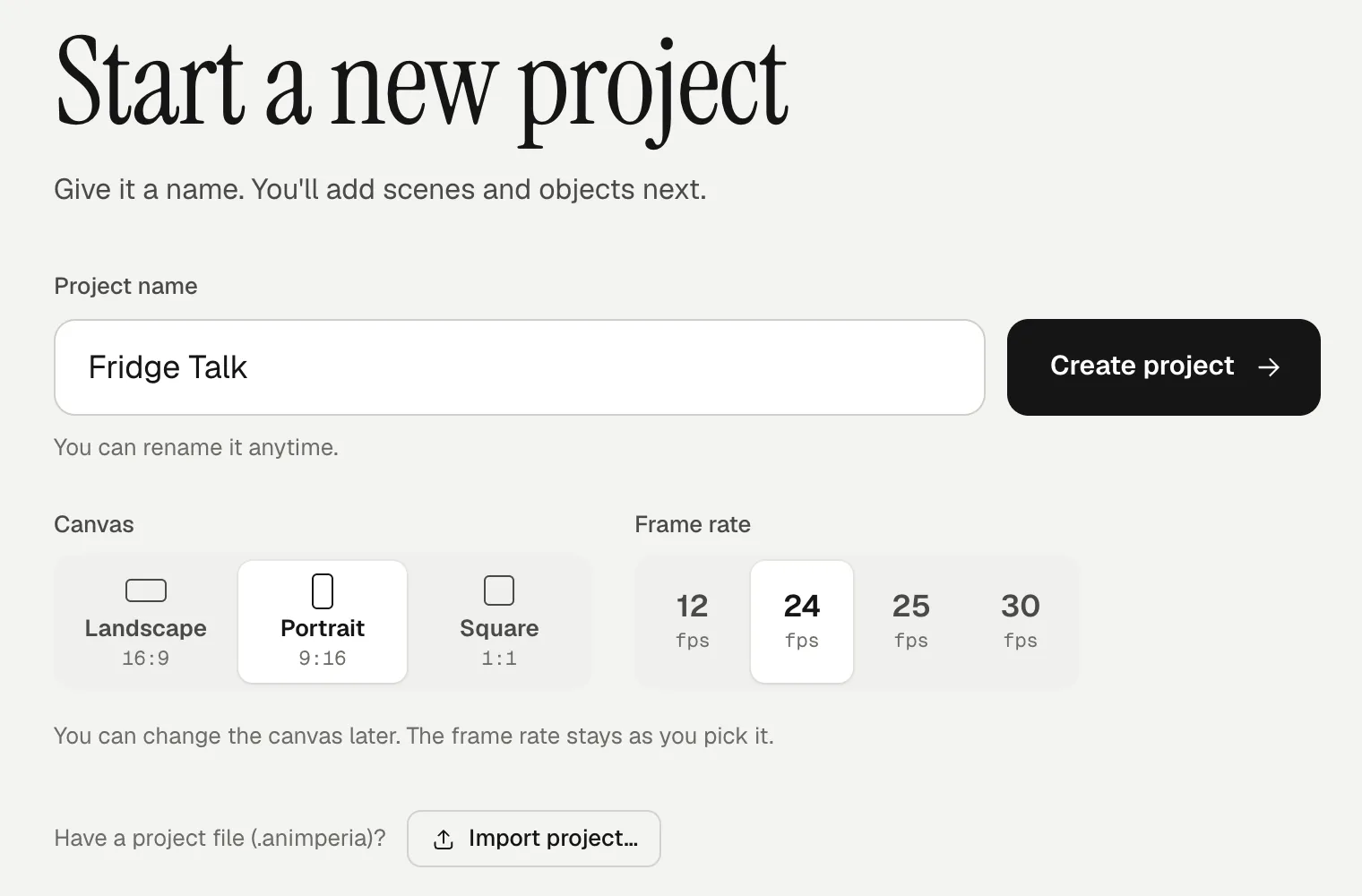
In Animperia, you pick the shape when you start a project. On the projects page, name it, then choose Portrait 9:16 under Canvas. That's 1080 × 1920 pixels, and every scene of the project uses it.
Which frame rate
Pick the frame rate in the same form, from 12, 24, 25 or 30 fps. It stays as you pick it, so choose before you animate:
- 24 fps is the classic animation rate and Animperia's default. Tweens and moves come out smooth.
- 12 fps gives a choppier, hand-made feel, and half as many frames to draw if you animate frame by frame.
- 25 or 30 fps suit you if the Short will be cut together with camera footage shot at that rate.
YouTube lists 24, 25 and 30 among the common frame rates it takes, and asks you to upload at the rate you made it in (YouTube Help, checked 11 October 2026).
Turning a wide project into a Short
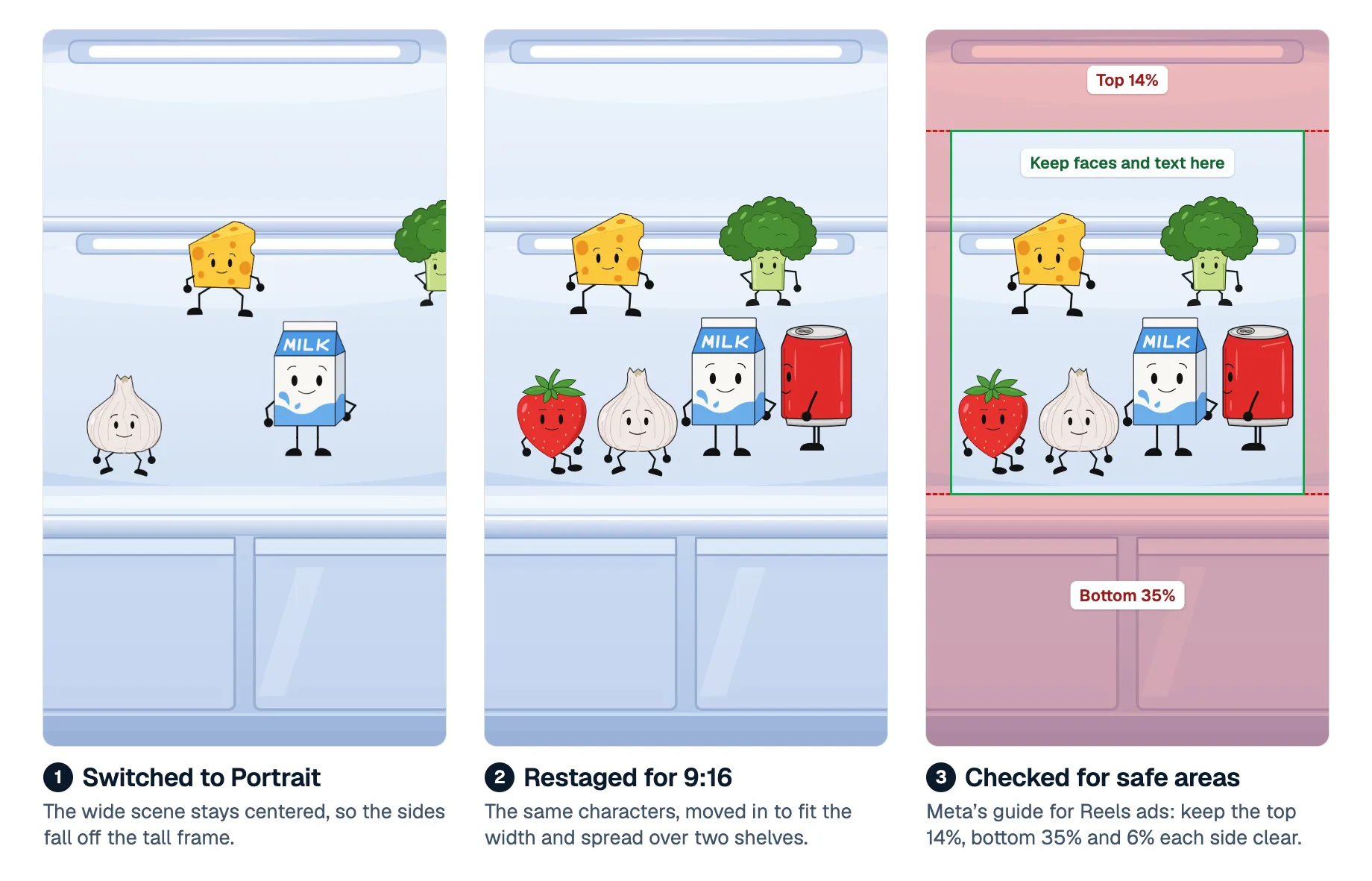
You can also reuse a landscape project. In the editor's project menu, Project settings… changes the canvas to Portrait. Every scene moves what it shows so it stays centered, and a background that filled the old canvas fills the new one. The sides of a wide scene fall off the tall frame, though, so plan to restage each shot.
Stage every shot for a tall frame
Keep faces and words in the safe area
The apps draw their own interface over your video: the channel or account name, the caption, and the like, comment and share buttons. Meta's guide for Reels ads suggests leaving at least 14% of the top, 35% of the bottom and 6% of each side free of text, logos and other important things, so the profile icon and the call to action don't cover them (Meta, checked 11 October 2026). On a 1080 × 1920 frame, that leaves a box of about 950 × 980 pixels in the upper middle.
It's a good working rule for all three apps:
- Put faces, mouths and any words you add inside that box.
- Let the background fill the bottom band and the edges. A floor, a table top or the sky works well there.
- Don't put a punchline in the bottom third, where the caption sits.
Animperia doesn't draw safe-area guides on the stage yet. To check a shot, export a Still image (PNG) of a busy frame and look at it on your phone, or upload a private test. You can also draw a rectangle outline with no fill as an object, sized to the safe area, and put it on the top layer while you stage. Turn that layer's eye off before you export, and it stays out of the video.
Frame characters for the height
A tall frame has room above and below, but little side to side:
- Go closer. A character that looks small in a wide shot reads well filling the middle of a phone screen.
- Stack, don't line up. Two characters fit better one in front and lower, the other behind and higher, than side by side.
- Use the height. Something can fall in from the top, hang from a shelf or peek up from the bottom.
- Make backgrounds tall. Upload a background picture of 1080 × 1920 pixels, or larger, so it fills the frame without stretching.
Move the camera up and down
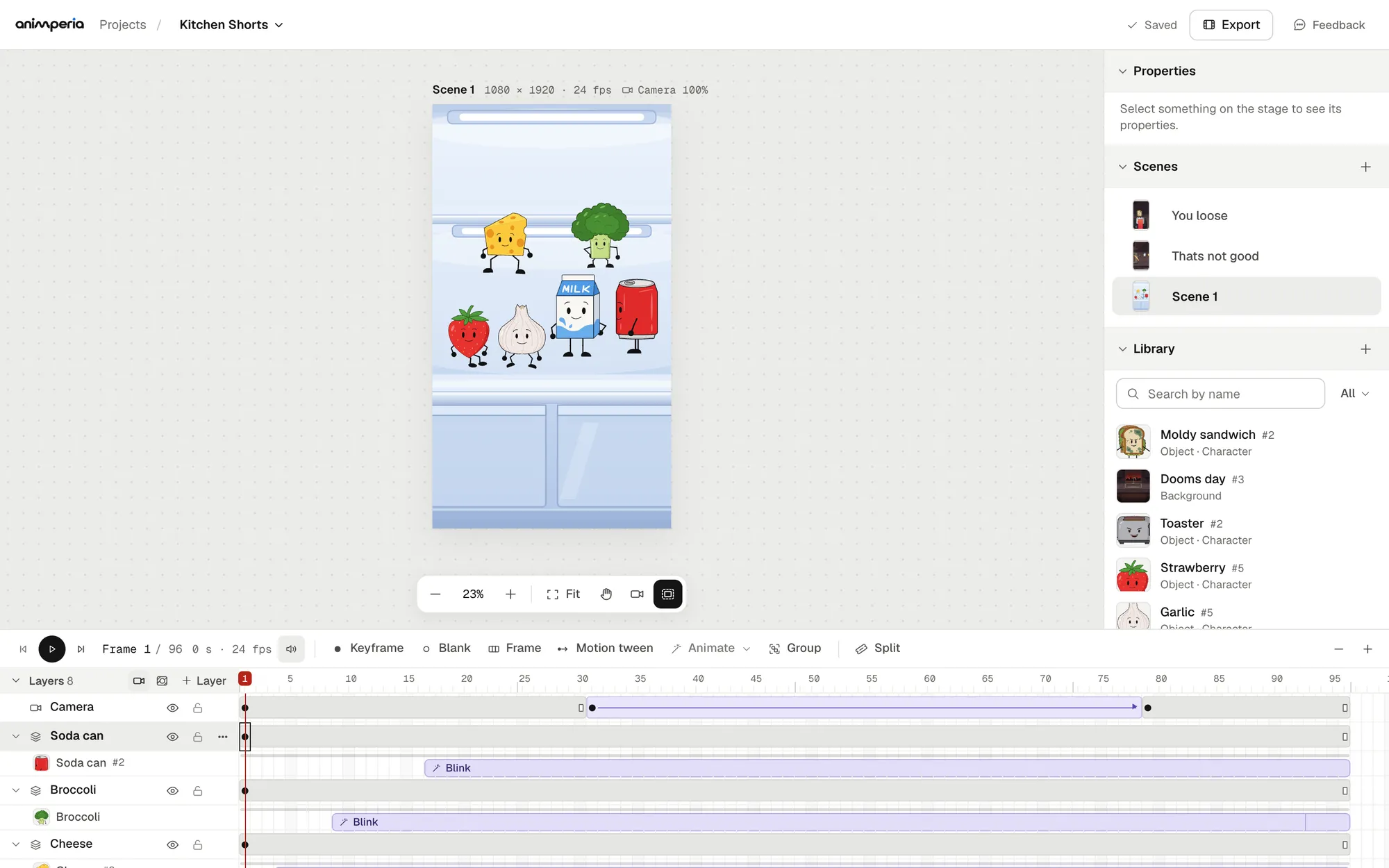
The camera is your best tool in a tall frame. Add one with the camera button next to + Layer in the timeline, or the Camera tool (C). Then move it from keyframe to keyframe like an object: press F6 on a later frame, zoom or pan the camera there, and press Motion tween. The camera now moves smoothly from one keyframe to the next, with easing if you like.
Moves that suit a vertical video:
- A push-in on the character who speaks, to make the line land.
- A tilt up or down a tall background, to reveal what's above or below.
- A cut, a keyframe with no tween, to jump to a new framing.
Pace it for short-form
A Short has a few seconds to make someone stay. Some habits that help:
- Start mid-action. Skip the title card and the slow fade-in. The first frame should already show a character doing something.
- One idea per Short. One joke, one reaction or one tiny story. If it needs a setup, keep the setup to a line.
- Change the shot every few seconds. Cut with camera keyframes inside a scene, or make several short scenes: they export back to back, in the project's order.
- Hold the beat that matters. After the punchline, give the reaction a moment before you end.
- End where it began. A Short whose last frame leads back into its first can play round and round without a bump.
- Mind the music. YouTube blocks Shorts longer than one minute that have an active Content ID claim (YouTube Help, checked 11 October 2026). Use your own sounds, or music you're allowed to use, and keep a Short under a minute if you're not sure.
Voices go a long way in a short cartoon. Upload a recording with the library's + and Sound, drag it onto a character, and its mouth follows the words.
Export the 1080p MP4
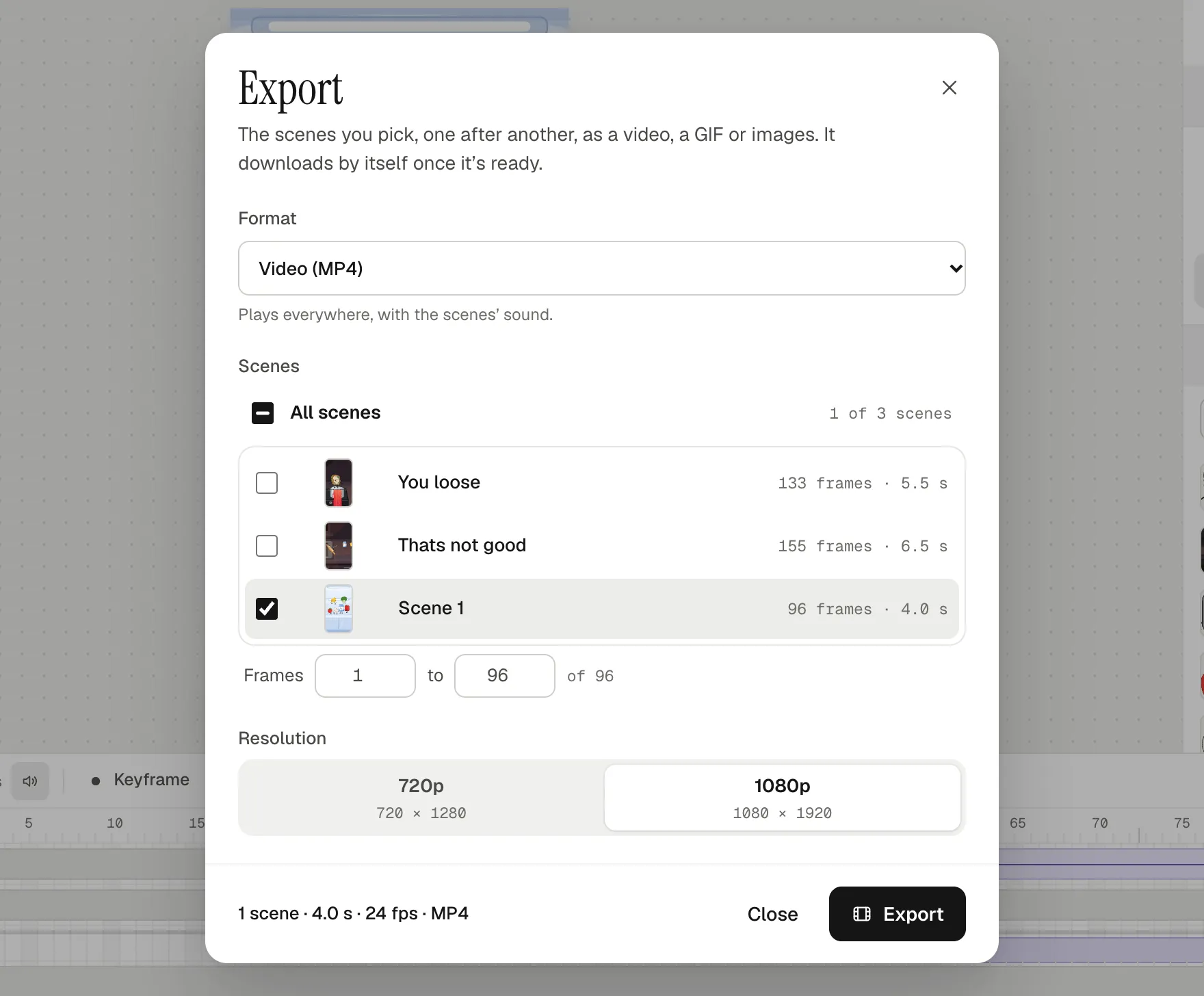
- Click Export in the top bar and keep Video (MP4) as the format.
- Tick the scenes. With one scene ticked, you can export only some of its frames.
- Pick 1080p. On a portrait canvas the dialog shows 1080 × 1920.
- Click Export. The server renders it, and the MP4 downloads by itself when it's ready.
The MP4 is H.264 video with AAC sound, which is what YouTube recommends for uploads (YouTube Help, checked 11 October 2026). Upload it from YouTube Studio on your computer, or move it to your phone and post it from the apps. The same file works for TikTok and Reels.
Want to add your characters on top of phone footage instead? Export a green-screen MP4 or a see-through WebM: how to export an animation with a transparent background.
Questions
Can I make a square video instead?
Yes. Pick Square 1:1 (1080 × 1080) for the canvas. YouTube counts square videos up to three minutes as Shorts too.
Can I animate on my phone?
No. Animperia is made for a desktop browser on Windows, Mac or Linux, and we test it in Google Chrome. Animate on a computer, then post the MP4 from your phone.
How long can a scene be?
A scene's timeline holds up to 10,000 frames, about 7 minutes at 24 fps. That's far more than a Short needs.
Is it free?
Yes, Animperia is free during the beta, and the videos have no watermark. Sign up for the beta to make your first Short.
YouTube is a trademark of Google LLC. Animperia isn't affiliated with or endorsed by YouTube, TikTok or Instagram.