Animperia, an Adobe Animate alternative in your browser
Updated
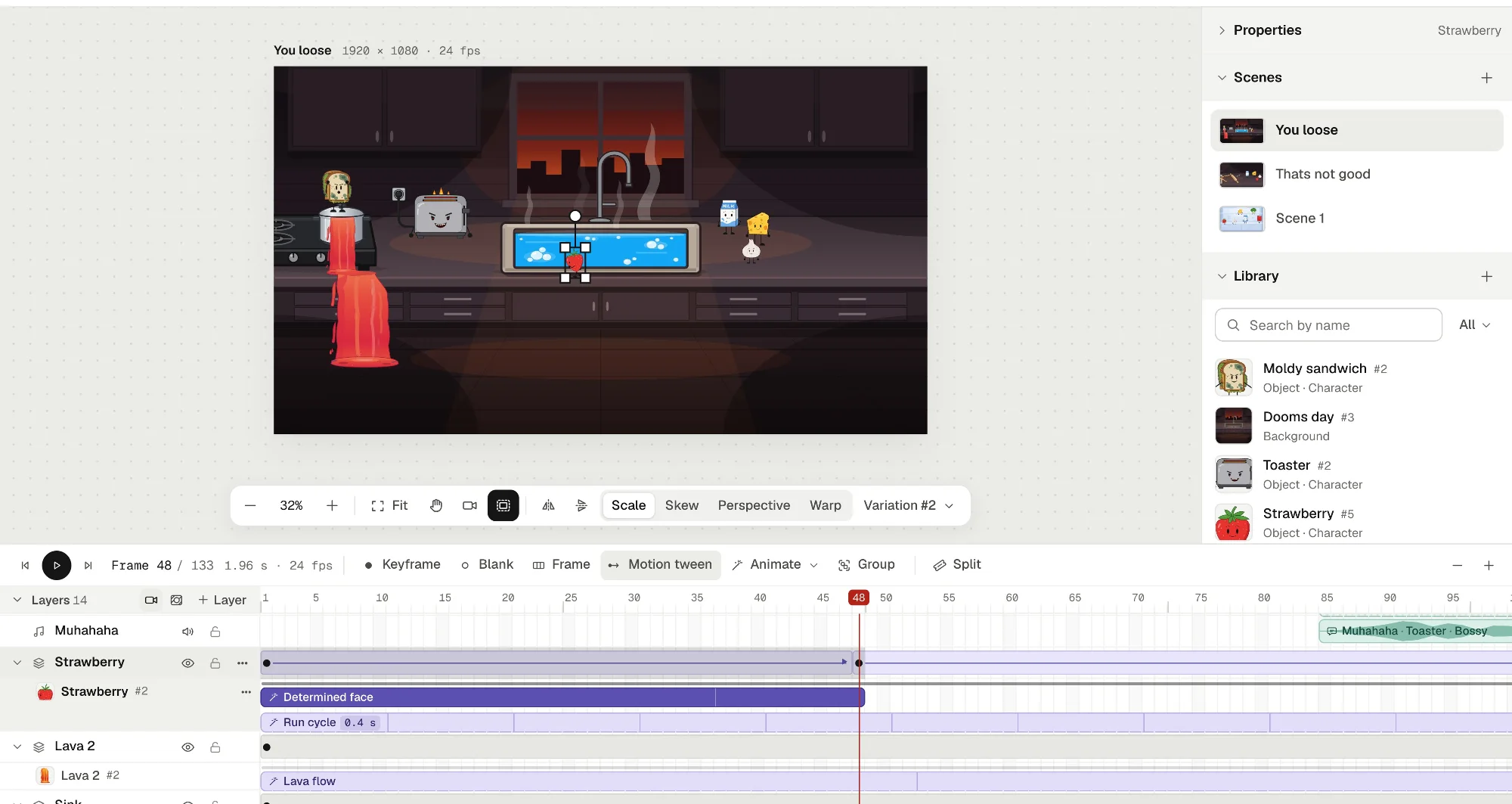
If you make cartoons in Adobe Animate and you’re wondering what comes next, this page is for you. Animperia is a 2D animation studio that runs in your web browser, built around the timeline Animate users know: layers, keyframes on F6, motion tweens, mask layers, a camera, and groups that play like movie clips. You draw your own characters, rig them with bones, and they lip-sync to your voice lines.
Here’s the honest summary. Your habits carry over: the timeline, the keyframes, the way you build a scene from layers. Your files don’t. Animperia can’t open FLA files, so you bring your artwork over as SVG and animate it again. And it makes videos, GIFs and images, not interactive HTML5 content.
Animperia is free during the beta.
Is Adobe Animate discontinued?
No. As of 11 October 2026, Adobe Animate isn’t shutting down: it’s still available and still gets fixes, but no new features. Here’s what happened this year:
- 2 February 2026: Adobe announced it would stop selling Animate on 1 March 2026, with support until 1 March 2027, or 1 March 2029 for enterprise customers (Adobe Community).
- 3 February 2026: Adobe reversed that plan. Animate is now in maintenance mode: it stays available to new and existing users and gets security and bug fixes, but no new features (Adobe Community; TechCrunch, 4 February 2026).
- 8 September 2026: the latest update we found, version 24.0.15 of Animate 2024, a security fix for Windows and macOS (Adobe security bulletin APSB26-132).
So nothing forces you to move. If you’re looking anyway, for software like Adobe Animate that runs in a browser, works on Linux or doesn’t need a subscription, read on.
What will feel familiar
Most of what you do every day in Animate has a counterpart in Animperia, often under the same name.
| In Adobe Animate | In Animperia |
|---|---|
| Layers, frames and keyframes | The scene’s timeline, with Frame (F5), Keyframe (F6) and Blank keyframe (F7). Shift+F5 removes frames and Shift+F6 clears a keyframe |
| Classic and motion tweens, with easing | Motion tweens between two keyframes for position, size, rotation, opacity, color and a character’s pose, evenly or easing in, out or both |
| Shape tweens | Reshape a shape on any frame of an animation, and the frames in between morph |
| Symbols, movie clips and the Library | Characters and props in the Library, and groups: frames turned into a library item with a timeline of its own, which plays like a movie clip right on the stage. Double-click one to edit it in place |
| Mask layers | Mask layers, with rectangle, ellipse and freehand shapes you can keyframe and tween |
| The camera layer | A Camera layer you pan, zoom and turn, with keyframes and tweens |
| The Bone tool and inverse kinematics | The Bone tool (M) joins parts where they turn. With Pivots on, drag a wrist or an ankle and the whole limb bends |
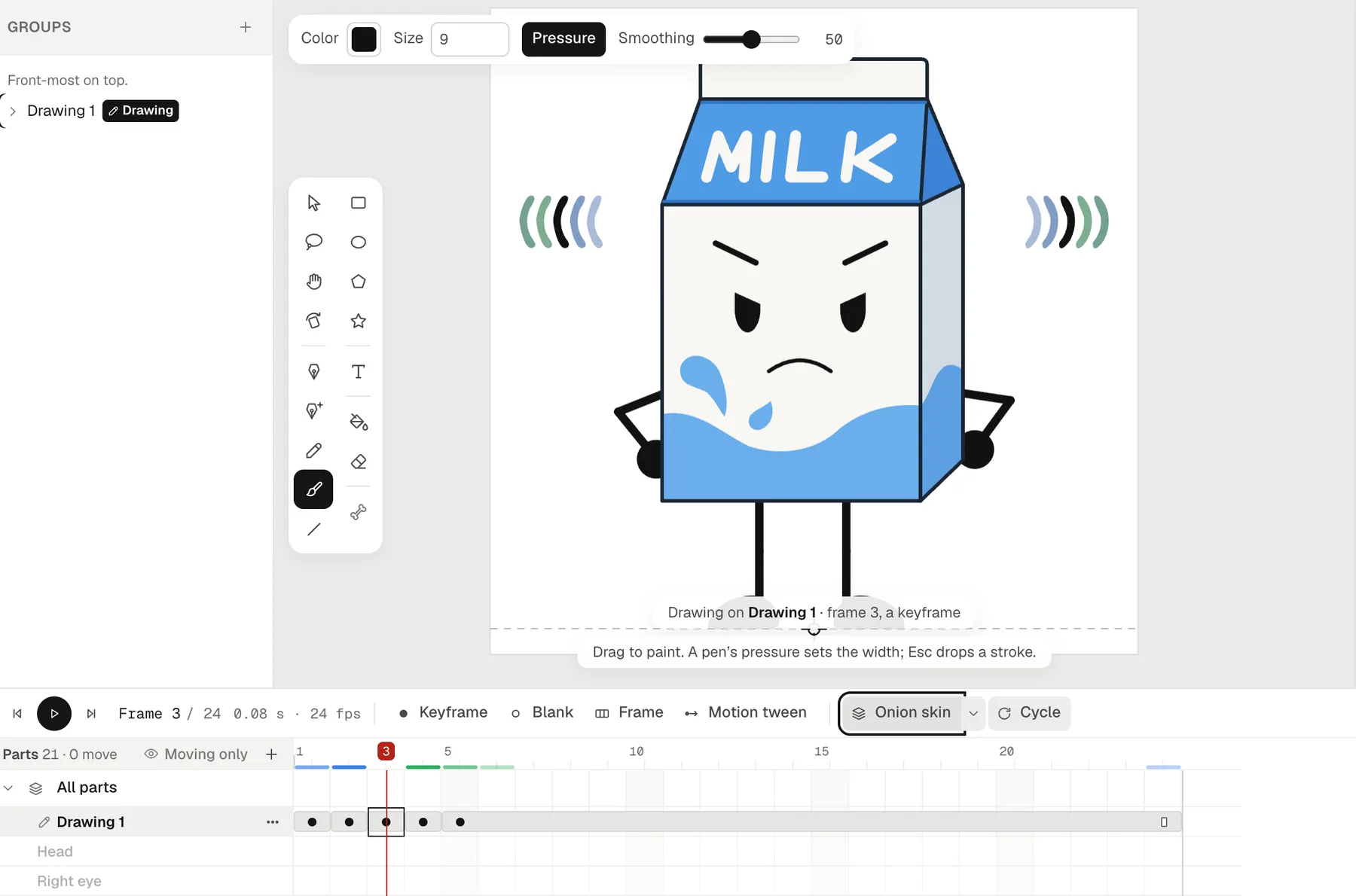
| Onion skin | Onion skin in an animation’s timeline: blue before, green after, up to 10 frames each way |
| Auto Lip-Sync | Lip sync from your voice lines: drop one on a character and its mouth follows the words, in mouth shapes you can redraw |
| Frame-by-frame drawing with the brushes, Eraser and Paint Bucket | Drawing layers, one drawing per keyframe, with a pressure-sensitive brush, a pencil, an eraser, a fill bucket and a lasso |
| Sound on the timeline | Sound layers, heard frame by frame as you scrub the playhead |
| Free Transform and Envelope | Scale, Skew, Perspective and Warp handles for objects, groups and shapes |
Animate’s column follows Adobe’s certification objectives and product page, checked on 11 October 2026.
One thing works differently. In Animperia, a character keeps its moves as animations of its own: a walk, a wave or a blink, posed or drawn frame by frame in the character’s drawing editor. On the scene’s timeline you play them as clips you can drag, trim and repeat, and they combine, so a character can walk and blink at once. Frame-by-frame drawing lives there too, on drawing layers in front of the character or behind it.
Adobe Animate and Animperia side by side
Adobe Animate is a desktop app you install, not something you use online. Animperia is a web app: you open it in a browser tab, and your work is saved online. Here’s how they compare, with Adobe’s details as of 11 October 2026.
| Adobe Animate | Animperia | |
|---|---|---|
| Where it runs | An app for Windows and macOS (Adobe) | A web browser on a Windows, Mac or Linux computer |
| Price | US$22.99 a month on an annual plan, billed monthly (adobe.com) | Free during the beta |
| Your files | FLA or XFL files (Adobe) | Saved online as you work. Download a whole project as one .animperia file, and import it again on any account |
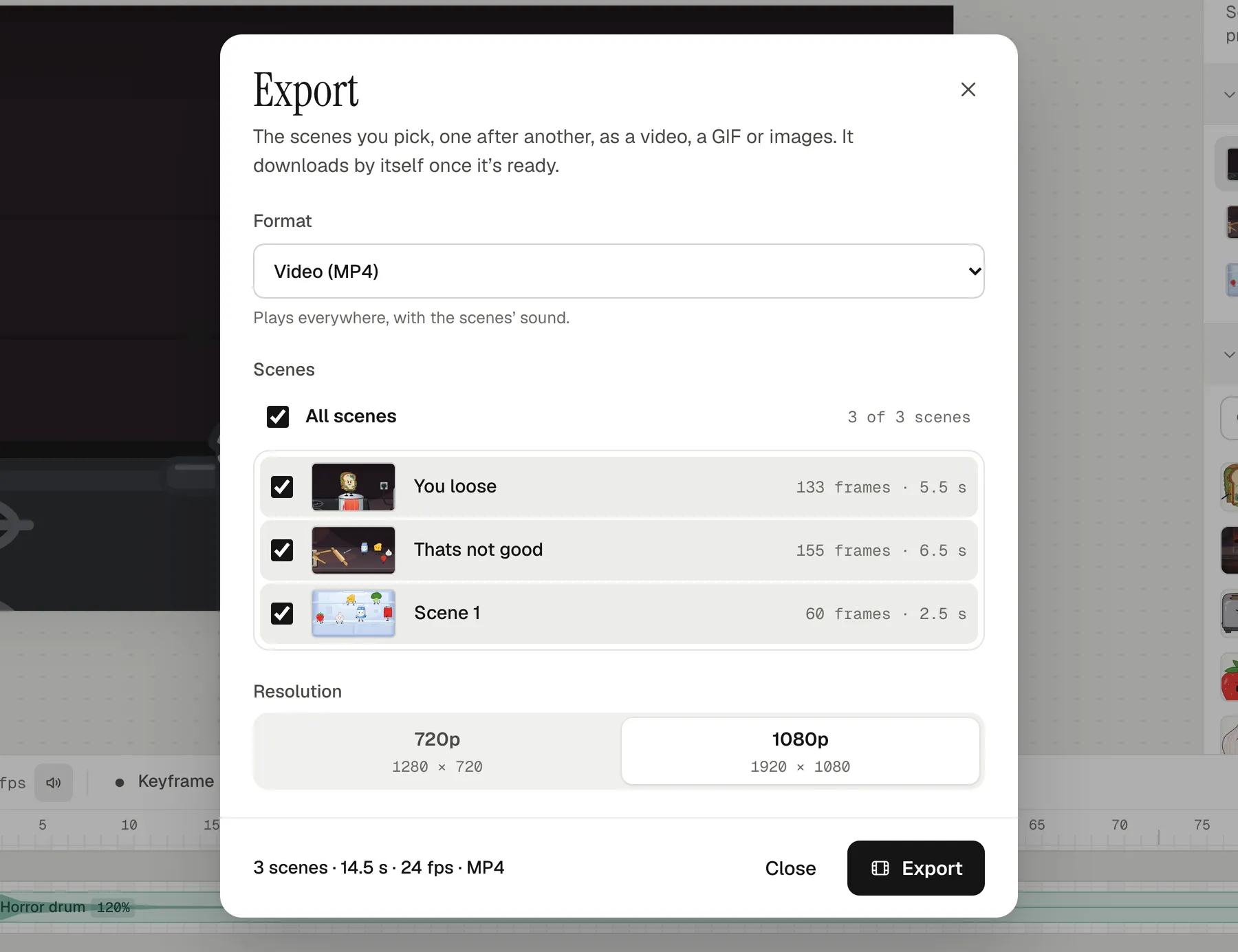
| Export | Video, animated GIF, image sequences and SVG (Adobe) | MP4 at 720p or 1080p, green-screen MP4, see-through MOV and WebM, GIF, PNG images and stills |
| Interactive publishing | HTML5 Canvas, WebGL, SWF and apps (Adobe) | None |
| Scripting | ActionScript or JavaScript, depending on the document type (Adobe) | None |
| Working offline | Yes, once it’s activated online (Adobe) | No: it needs an internet connection |
What Animperia doesn’t do (yet)
Some things you rely on in Animate aren’t here. As of 11 October 2026, Animperia can’t:
- Open FLA or XFL files. Only your artwork comes over, as SVG.
- Publish interactive content. There’s no HTML5 Canvas, WebGL, SWF or app publishing, no buttons and no scripting. Animperia makes videos, GIFs and images.
- Export vector files. SVG comes in, but nothing goes out as SVG yet.
- Work offline. It needs an internet connection. If the connection drops mid-edit, your changes wait in the browser and save when it’s back.
- Run on phones. It’s made for a computer’s browser.
- Put bitmaps inside characters. Pictures can be backgrounds, but characters and props are vector drawings.
- Match every Animate extra. There are no motion guides, custom ease curves, shape hints, blend modes, filters such as blur or drop shadow, or layer depth for parallax. Groups always loop from the frame they appear on.
How to bring your work over
Animperia can’t read your Animate projects, so here’s the path that works today: your artwork comes over as SVG, and you animate it again. The animation itself doesn’t carry over: tweens, keyframes, nested timelines and scripts stay behind in Animate.
1. Export the artwork from Animate as SVG. Put the playhead on a frame that shows the character, then choose File > Export > Export Image (Legacy) and save it as SVG (Adobe Community, August 2024). Adobe’s help page also lists SVG Image under Other Formats in Publish Settings. For one character per file, copy it into an empty document first. Export backgrounds as PNG images.
2. Import it into Animperia. In the library, click + and pick Object. On the Hands-on tab, choose SVG file and drop the file in, or paste SVG code. A preview shows the drawing, counts its groups and shapes, and says what a drawing can’t keep, such as bitmaps, masks and filters.
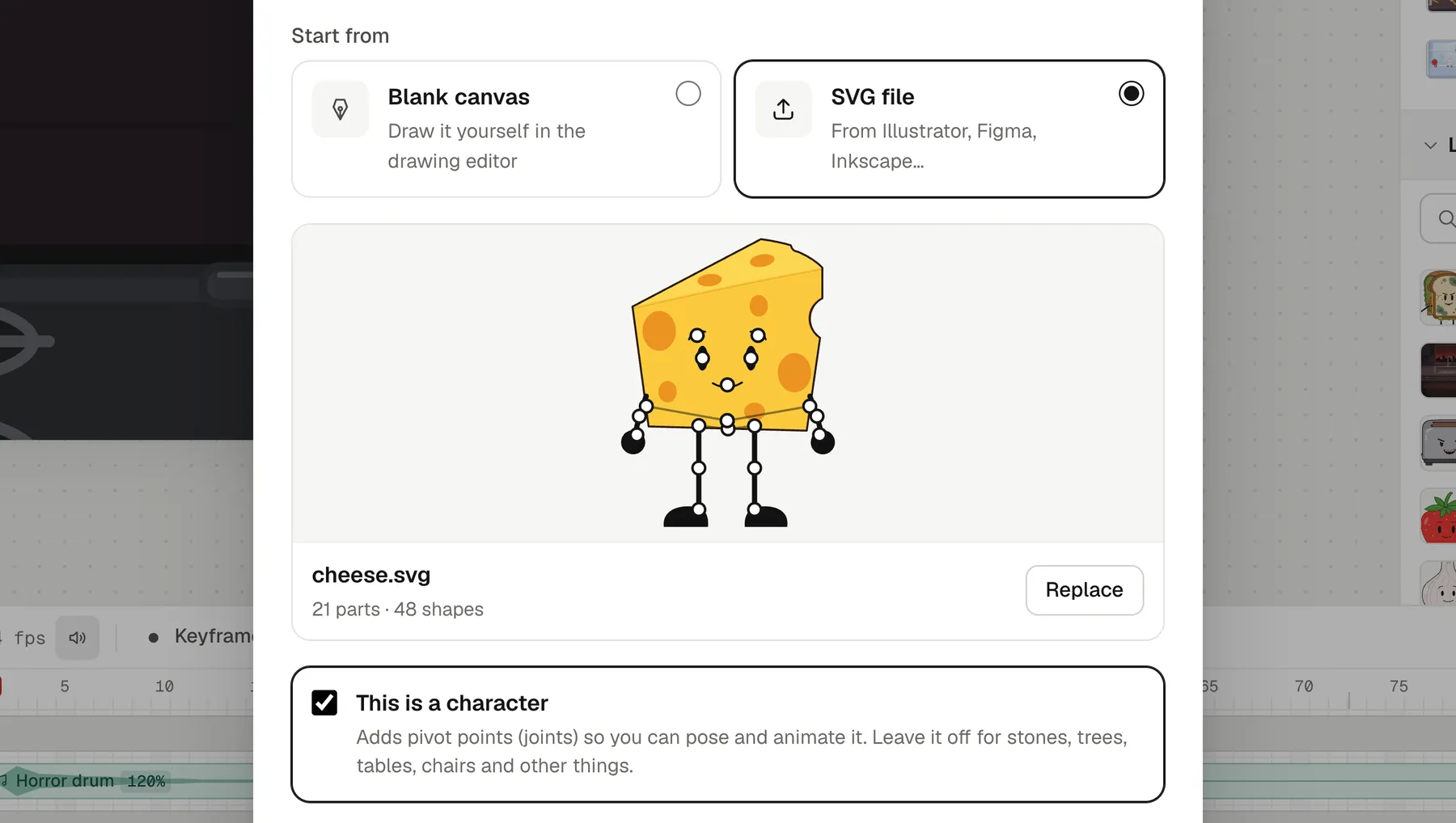
3. Make it a character. Tick This is a character: the file’s groups become parts that hang from each other as the file nests them, each turning where it meets the part it hangs from, and a group named Mouth can talk. Click Open in editor, and the first Save makes the object.
4. Check the rig. In the drawing editor, the Bone tool (M) hangs one part from another and moves its joint, and Make as body part, in a group’s ⋯ menu, turns a group into a part. Press Pivots to pose the character by its joints, and run the Wiggle test to see every limb swing.
5. Animate it again. In the drawing editor’s animations, Add opens New animation, and Hands-on starts an empty one. Pose frame 1 with Pivots on, press F6 and pose the next, or pick the brush and draw frame by frame. Back in the scene, drag the character from the library onto the stage, right-click it on the timeline and pick Animate: and the animation’s name to play it as a clip, then move it around with keyframes and motion tweens.
6. Give it a voice and export. Upload a recording with + and Sound, then drag it onto the character: the sound goes on a layer of its own and the mouth follows the words. When the scene is ready, Export in the top bar renders it, and the file downloads by itself.
Questions from Animate users
Can I open my FLA files?
No. Animperia can’t open FLA or XFL files, and nothing in it converts an Animate timeline. Export the artwork as SVG and import it, as above, then animate it again. Your FLA files still open in Animate, which Adobe still sells and supports (Adobe Community, 3 February 2026).
Is it free?
Yes. Animperia is free during the beta, which makes it a free Adobe Animate alternative for now. You sign up with your email: while the beta has room, you get a link to set your password and start right away, and when a round is full, you go on the list for the next one.
Does it work on Mac and Linux?
Yes. Animperia runs in a web browser, so it works the same on Mac, Linux and Windows computers, while Adobe Animate runs on Windows and macOS (Adobe). We test Animperia in Google Chrome. It isn’t made for phones.
Do I need to install anything?
No. You open Animperia in a browser tab and start animating. Scenes and animations save themselves as you go, and you can download a whole project as one file whenever you want a copy.
Can I export a GIF or a transparent video?
Yes. Export makes a GIF (240p to 480p, up to 30 seconds), a see-through MOV (ProRes 4444) for video editors, a see-through WebM for web pages and OBS, a green-screen MP4 for apps with a chroma key, an MP4 at 720p or 1080p, PNG images in a ZIP, or a single PNG.
Do I have to use AI?
No. You can draw, rig, pose and animate everything by hand, and the AI helpers are optional.
About this comparison
This page compares Animperia as it is on 11 October 2026 with Adobe Animate as Adobe and the press describe it, in the pages linked above. If you want to see how your characters feel in Animperia, sign up for the beta and bring one over: it’s free during the beta.
Adobe and ActionScript are either registered trademarks or trademarks of Adobe in the United States and/or other countries. Animperia isn’t affiliated with or endorsed by Adobe.