Frame-by-frame animation online, with onion skin
Updated
Frame-by-frame animation is the oldest kind there is: you draw a picture, change it a little on the next frame, and play them in a row. It’s how a flipbook works, and how a bouncing ball, a splash or a puff of smoke gets its life.
Animperia lets you do it in a web browser. You draw on drawing layers with a pressure-sensitive brush, an eraser, a lasso and a fill bucket that closes small gaps, add a keyframe for each new drawing with F6 or F7, and see the frames around you through the onion skin. It’s free during the beta.
Where you draw
In Animperia, frame-by-frame drawings live inside an object’s animations. That keeps a drawn animation reusable: draw a splash once, then play it in as many scenes as you like, as often as you like.
- In the library, click +, pick Object and choose Blank canvas. Draw the first drawing, then press Save.
- Under Animations on the right, click Add, choose Hands-on, and give it a name and a length.
- The timeline opens under the drawing. Each group of the drawing is a drawing layer there; click one and draw on it. The + above the rows adds another layer.
- In a scene, drag the object onto the stage, right-click it on the timeline and pick Animate: and the animation’s name.
Drawing layers work on characters too. Add one to a rigged character’s walk and draw speed lines, sweat drops or a smear frame in front of the character or behind it, while the rig does the rest.
One keyframe per drawing
On a drawing layer, each keyframe holds one drawing, shown until the next keyframe. The keys are the ones Flash and Adobe Animate users know:
| Key | What it does on a drawing layer |
|---|---|
| F7 | A blank keyframe: a new, empty drawing |
| F6 | A keyframe with a copy of the drawing, to change |
| F5 | Holds the drawing a frame longer |
| Shift+F5 | Holds it a frame shorter |
| Shift+F6 | Clears the keyframe |
Nothing makes a keyframe by itself. Drawing on a frame that isn’t a keyframe changes the drawing held there, and a note under the canvas says so. To animate on twos, press F7 every other frame: each drawing then holds for two frames, twelve drawings to a second at 24 fps. Projects run at 12, 24, 25 or 30 frames per second, chosen when you create them.
The drawing tools
Brush
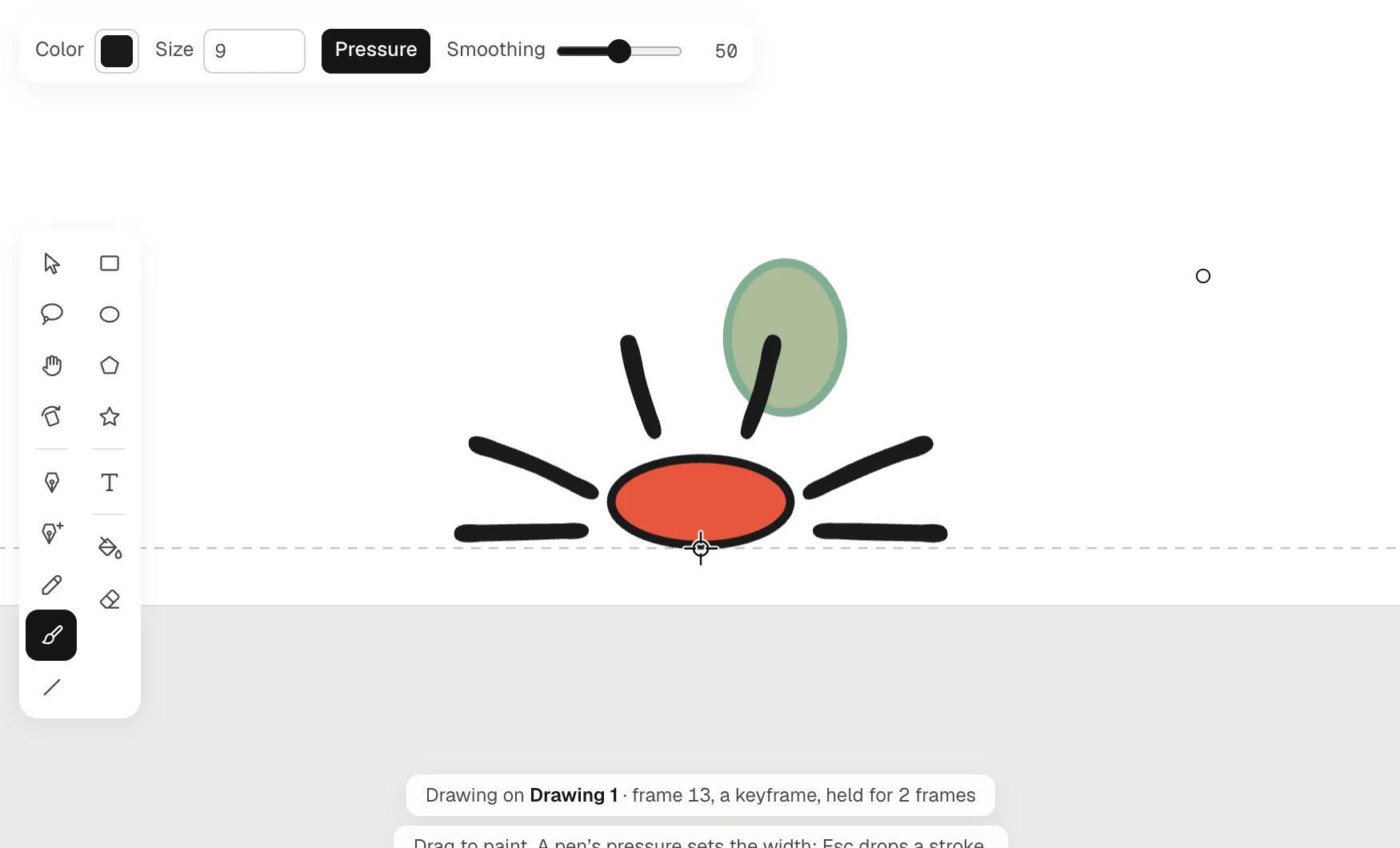
The brush (B) paints filled strokes. With a pen tablet its width follows your pressure; with a mouse it follows how fast you move. Above the canvas you set the Size, turn Pressure on or off and choose how much Smoothing irons out a shaky hand.
Eraser
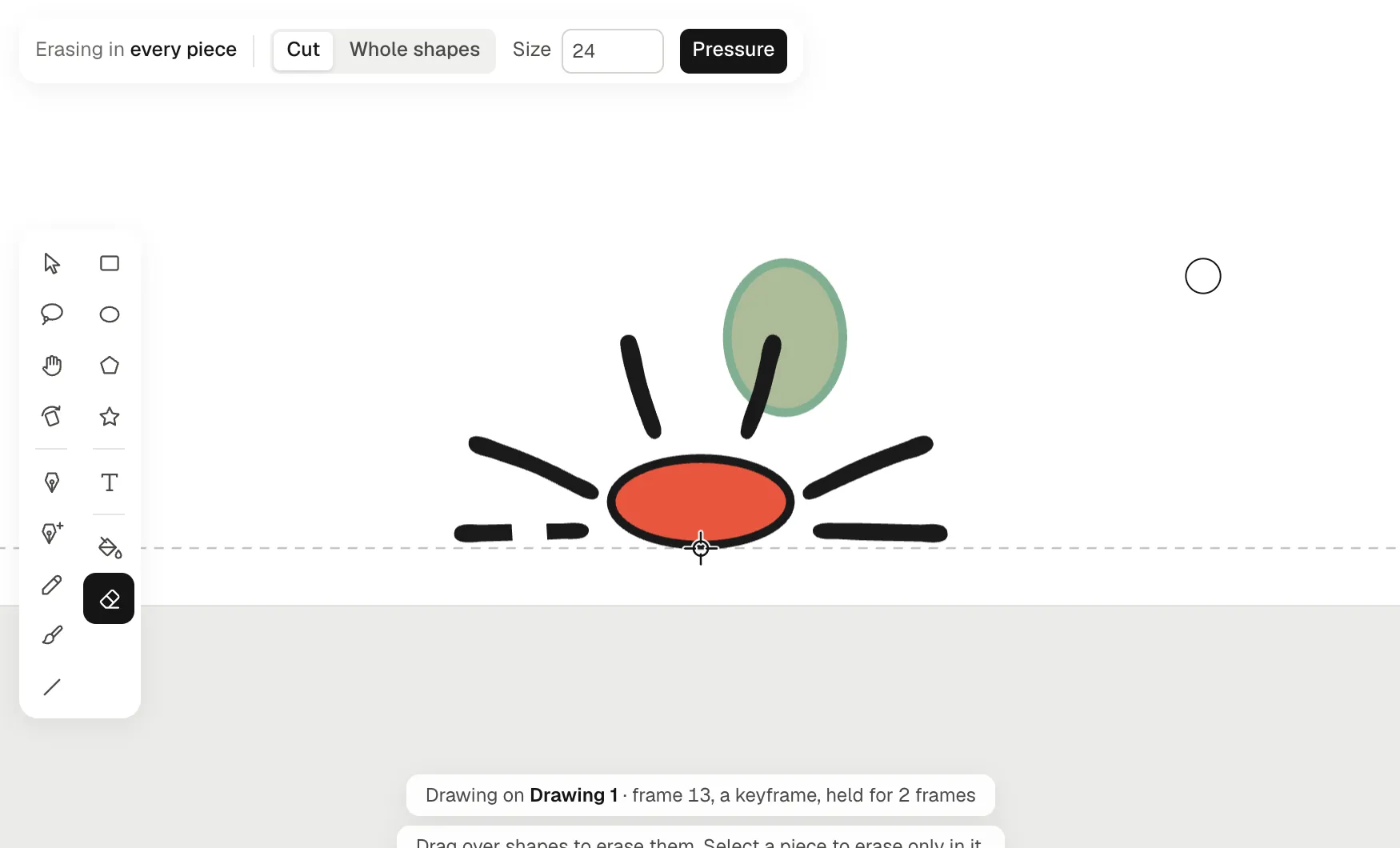
The eraser (E) cuts away whatever it drags over. A filled shape loses that bit and keeps its outline along the new edge, and a line is cut in two. Switch it to Whole shapes to remove a shape with one touch.
Lasso
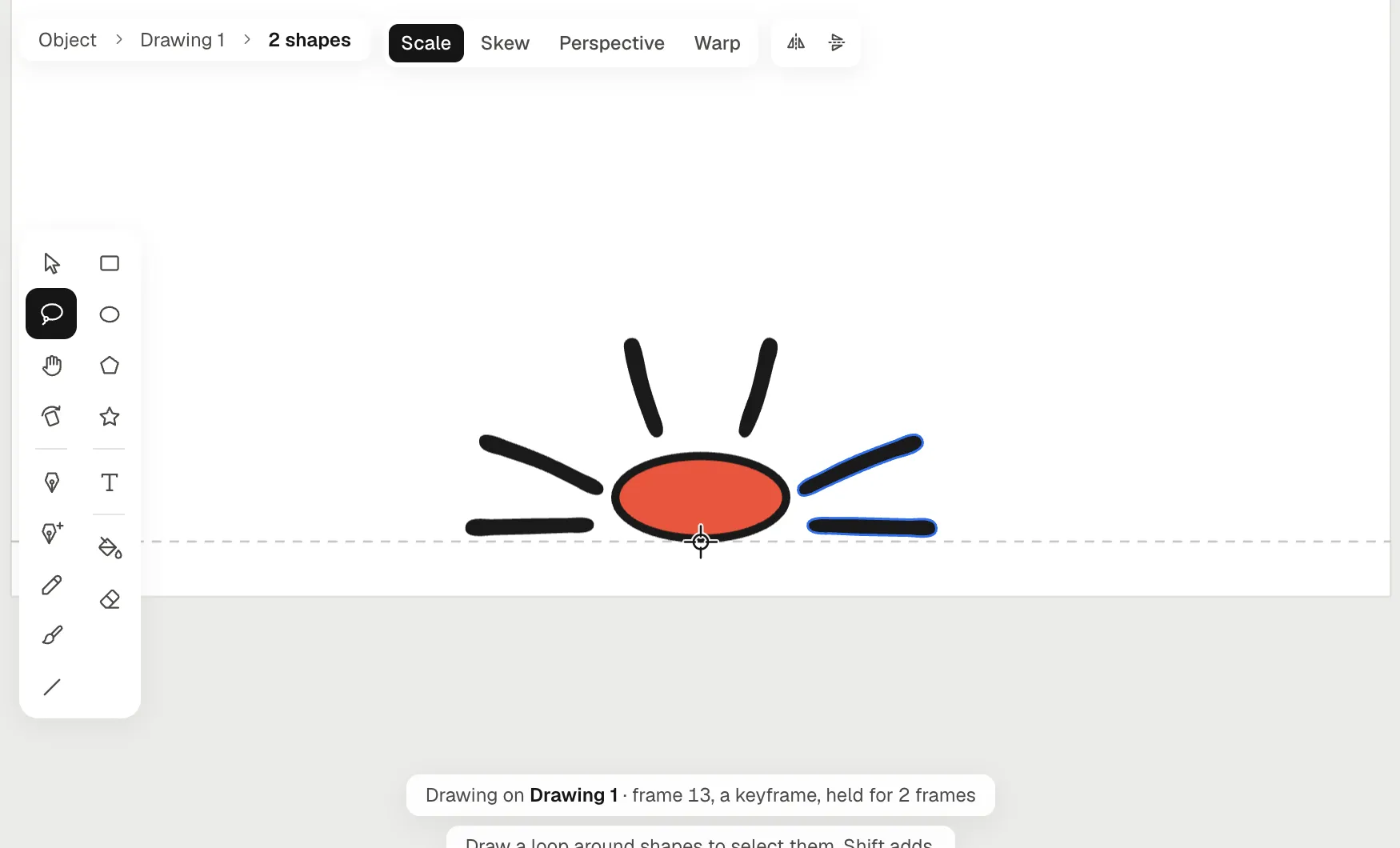
The lasso (L) selects the shapes inside a loop you draw, and Alt-clicks give it straight sides. Then move, scale, turn or delete what you caught, or nudge it with the arrow keys.
Fill, with gap closing
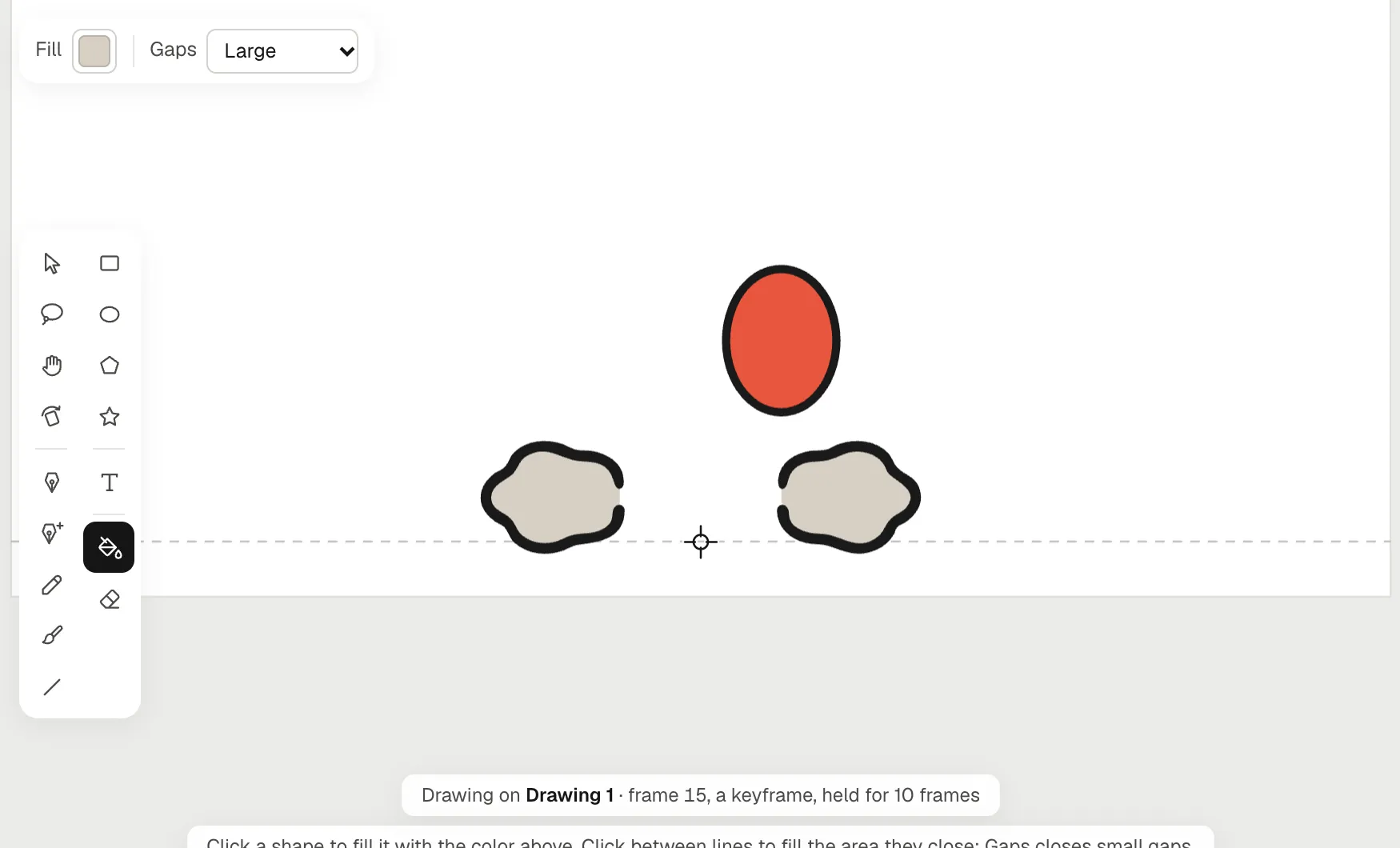
The fill bucket (K) pours color into a shape you click. Click between lines instead, and it fills the area they close off as a new shape behind them. Hand-drawn lines rarely meet perfectly, so the Gaps setting closes small openings for you: Don’t close, Small, Medium or Large. The gaps are measured on screen, so zooming out closes bigger ones.
Everything you draw is vector, so it stays sharp at 1080p and when you scale it. You can also turn the canvas like a sheet of paper with Rotate view (Shift+H).
Onion skin
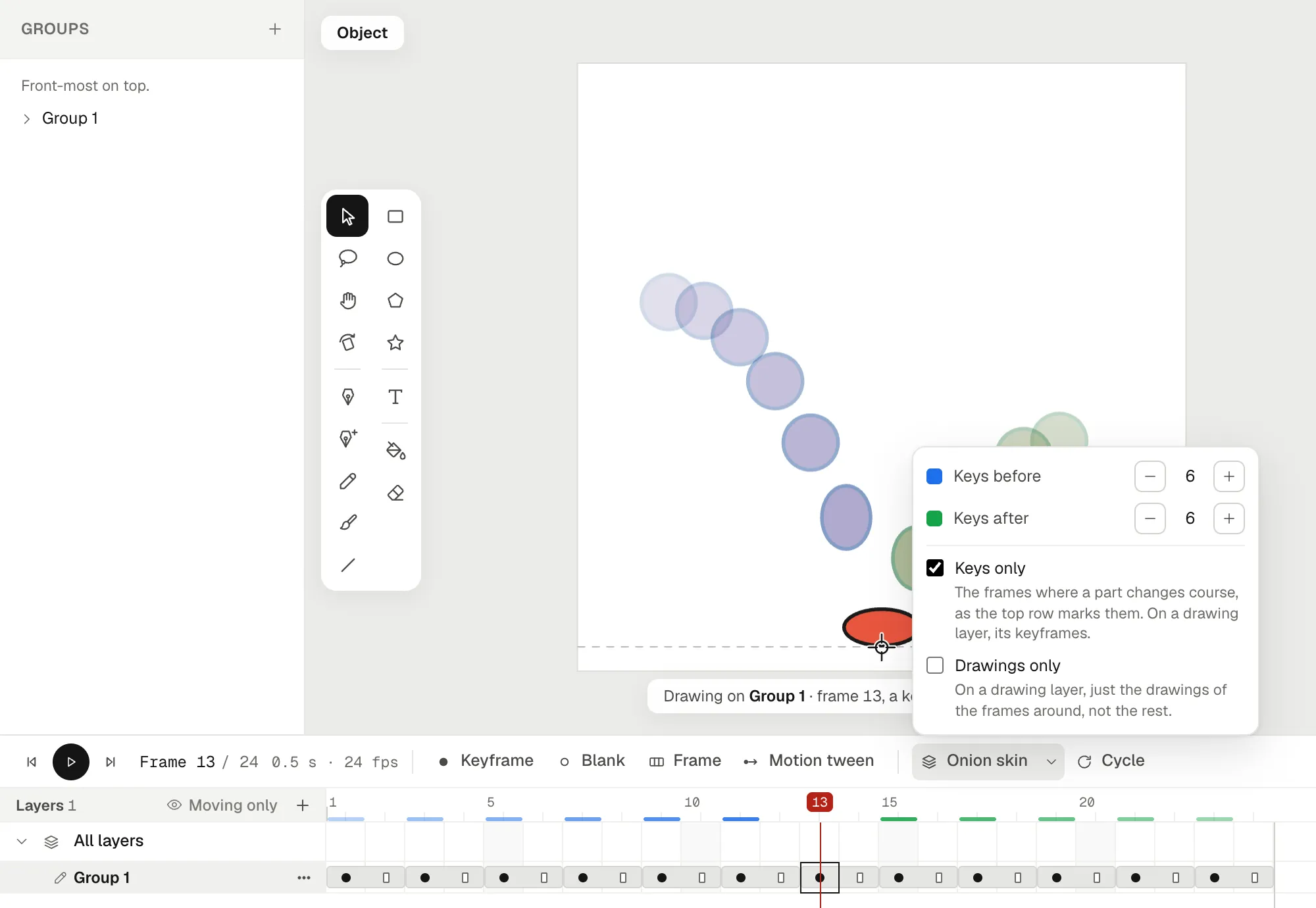
The onion skin shows the frames around the playhead, faint, under the one you’re drawing: blue for the frames before, green for those after, fainter further away. Its arrow opens the settings, which your browser remembers:
- Frames before and Frames after, from 0 to 10 each way. Three each way is the default.
- Keys only counts keyframes instead of frames. On a drawing layer, that’s one ghost per drawing, the clearest view of the spacing on twos.
- Drawings only shows just the drawing layers’ drawings around you, without the rest of the object.
The onion skin never shows in the stage, the thumbnails or an export.
When you’re done
Drawn animations play in the preview, on the stage and in every export: MP4 at 720p or 1080p, an animated GIF, see-through MOV or WebM, a green-screen MP4, PNG images in a ZIP, or a single PNG. Projects can be landscape (16:9), portrait (9:16) for Shorts and Reels, or square.
Limits
As of 11 October 2026:
- Vector only. There are no raster brushes, textures or paper grain.
- Inside animations. Drawing layers belong to an object’s animations, and you play them in a scene as clips. The scene’s own timeline doesn’t have drawing layers.
- Up to 8 drawing layers per animation, and 600 shapes in one keyframe’s drawing.
- Computers only. Animperia runs in a desktop browser on Windows, Mac or Linux, and we test it in Google Chrome. It isn’t made for phones or tablets.
Questions
Is it free?
Yes, Animperia is free during the beta. Sign up with your email; accounts are for people aged 13 and over.
Do I need a drawing tablet?
It helps for frame-by-frame work, because pressure gives your lines life. Without one, the brush takes its width from your mouse’s speed, and Smoothing steadies the stroke. For animation that doesn’t need a drawing on every frame, see how to animate without drawing every frame.
Can I mix drawn frames with a rigged character?
Yes. A rigged character’s animation can have drawing layers in front of it or behind it, so you can pose the body with its joints and draw the effects by hand. See 2D rigging for the rig side.
Can I import my own sketches?
SVG files come in as vector drawings. Pictures (PNG or JPG) can be scene backgrounds, but you can’t draw over them inside an object.