Animperia, a FlipaClip alternative for your computer
Updated
FlipaClip is a frame-by-frame animation app made for phones and tablets. If you’ve outgrown a small screen and want to animate on a computer, with a bigger canvas, a keyboard and maybe a drawing tablet, you’ve probably searched for FlipaClip for PC and found emulator guides.
Animperia is a different app, not a version of FlipaClip, and it can’t open FlipaClip projects. It’s a 2D animation studio that runs in a desktop browser on Windows, Mac or Linux, where you draw frame by frame with layers and onion skin, add music and sound effects, and export a video or a GIF. When you want to, you can also rig characters, tween them and make them talk. It’s free during the beta.
Can you get FlipaClip on PC, Mac or Chromebook?
Sometimes. FlipaClip lists four app stores (Apple’s App Store, Google Play, Amazon’s Appstore and Huawei’s AppGallery), adds Chromebooks through Google Play, and says it’s also on Macs with an M chip, though not fully optimized yet (FlipaClip support, updated June 2025). Apple’s App Store asks for macOS 12 and an Apple M1 chip or later (App Store). Here’s where each one runs, as of 11 October 2026:
| Your device | FlipaClip | Animperia |
|---|---|---|
| Android phone or tablet | Yes, from Google Play | No |
| iPhone or iPad | Yes, from the App Store | No |
| Chromebook | Yes, from Google Play | Not tested yet |
| Mac with an Apple M chip | Yes, from the App Store, not fully optimized | Yes, in a desktop browser |
| Mac with an Intel chip | No | Yes, in a desktop browser |
| Windows PC | No: Windows isn’t on FlipaClip’s list | Yes, in a desktop browser |
| Linux PC | No | Yes, in a desktop browser |
So if you have a Chromebook or a recent Mac, FlipaClip itself may be all you need. Guides to “FlipaClip on PC” run the Android app in an emulator, which FlipaClip doesn’t list as a way to use it. Animperia is for when you want to animate on a Windows or Linux computer, or on any computer in a browser tab. We test it in Google Chrome.
What will feel familiar
The ideas you use in FlipaClip every day are here, under slightly different names.
| In FlipaClip | In Animperia |
|---|---|
| Frames on a timeline | Keyframes on a drawing layer: F7 starts a blank one, F6 copies the drawing to change, F5 holds it a frame longer |
| Layers: three free, unlimited with Plus | Up to eight drawing layers in each animation, in front of the drawing or behind it |
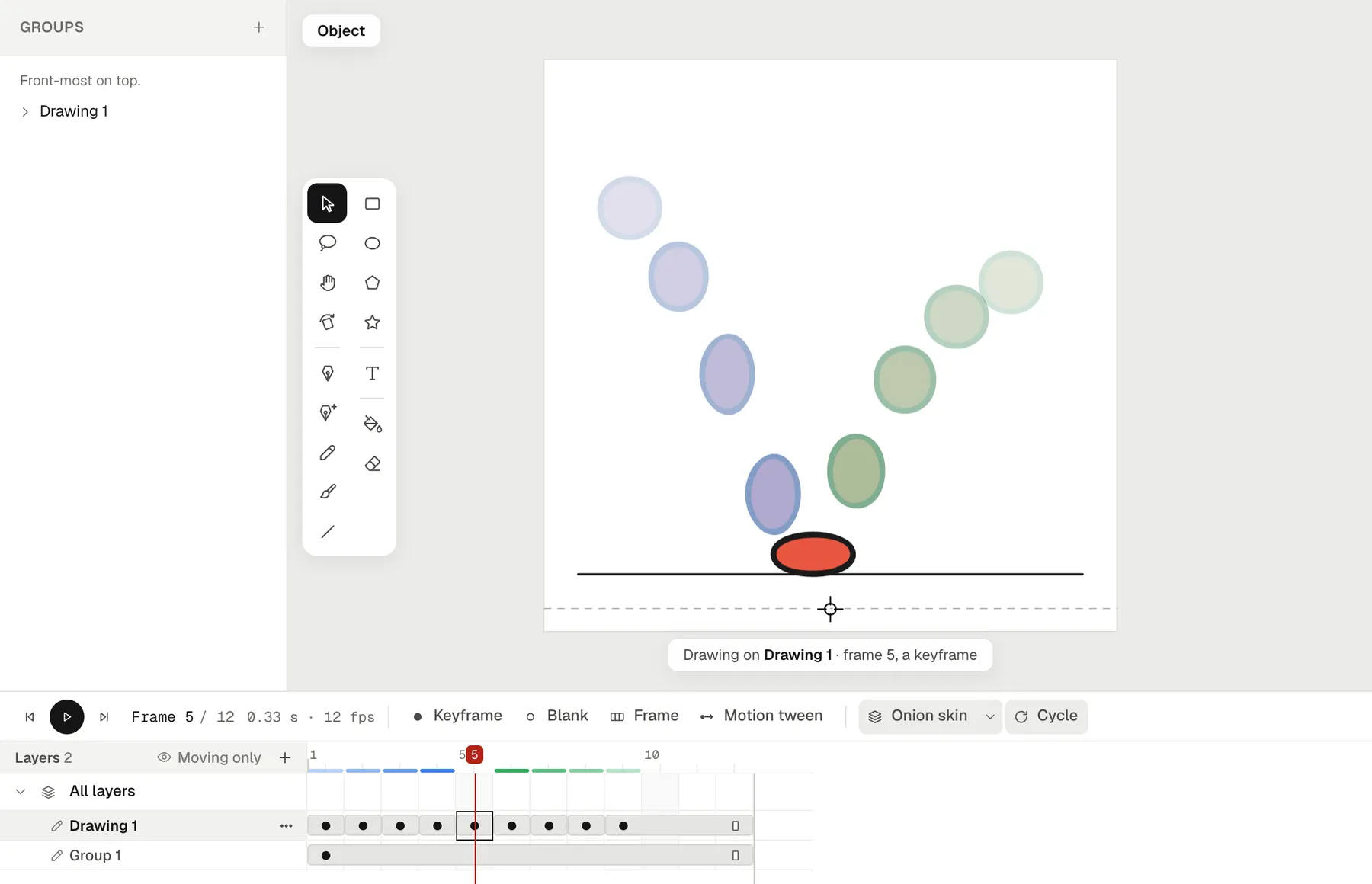
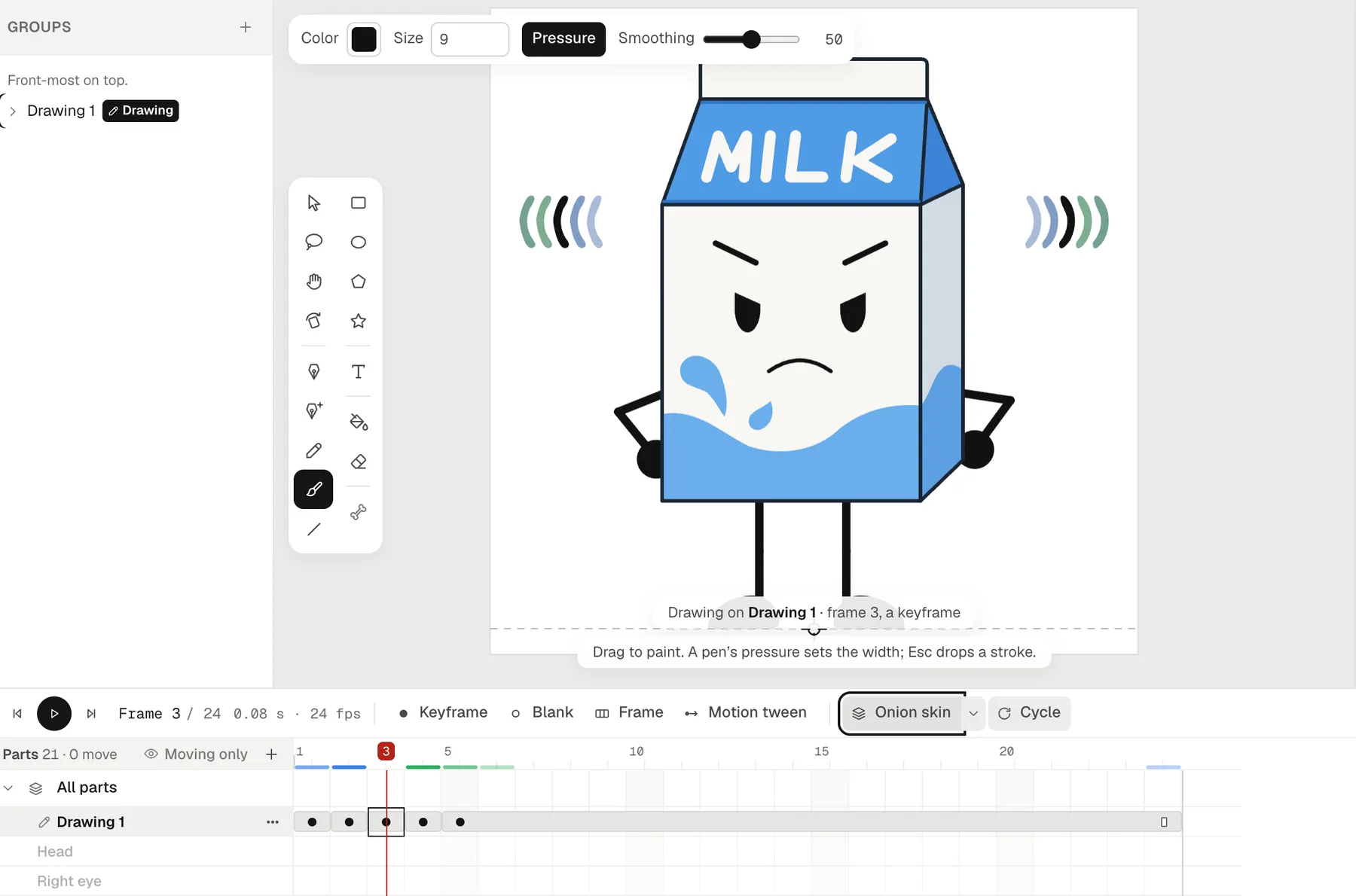
| Onion skin | Onion skin: earlier frames in blue, later ones in green, up to 10 each way, or the drawings only |
| Brushes, eraser, fill and lasso | A Brush that follows your pen’s pressure, or your mouse’s speed, an Eraser, a Fill bucket that closes gaps between lines, and a Lasso |
| Text | The Text tool (T) |
| Sound effects, music, and your voice recorded in the app | Sound layers for files you upload: trim, split, change volume and speed, fade in and out, and hear the sound frame by frame as you scrub |
| Canvas size and frame rate | Landscape 16:9, portrait 9:16 for Shorts and TikTok, or square 1:1, at 12, 24, 25 or 30 frames a second |
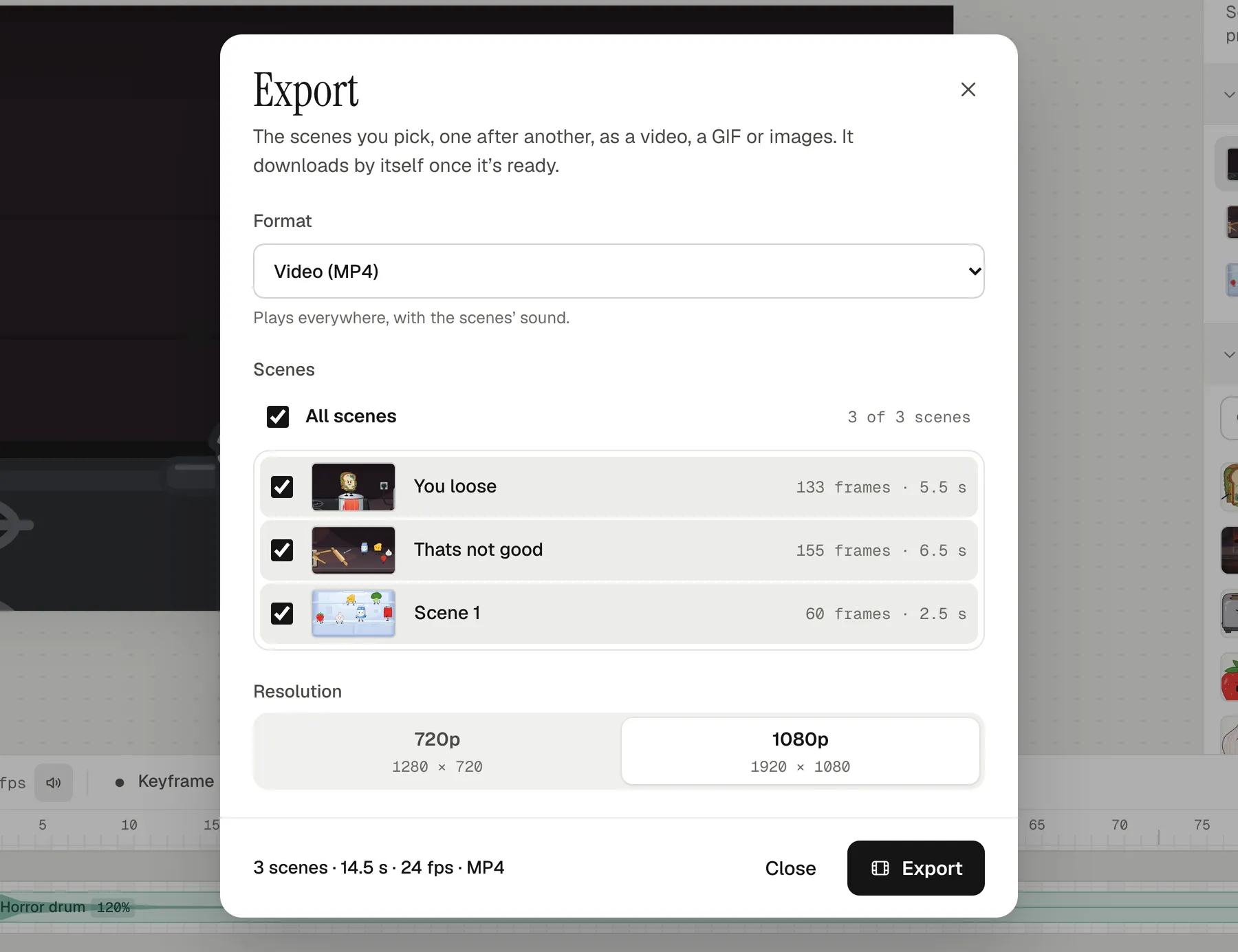
| Export to MP4, GIF, or PNG with Plus | MP4, GIF and PNG images, plus see-through MOV and WebM and a green-screen MP4 |
FlipaClip’s column follows its App Store listing, checked on 11 October 2026.
Frame by frame in Animperia, step by step
In Animperia, a frame-by-frame animation belongs to an object in your library. You draw it in the object’s drawing editor, then place it in a scene, with the background, other characters and sound around it. Here’s the whole way through, as we did it for the ball above.
1. Make a project. Name it, pick a canvas (Portrait for Shorts, Reels and TikTok, Landscape for YouTube) and a frame rate. 12 frames a second is a good start for drawn animation. The canvas can change later; the frame rate can’t.
2. Start a drawing. In the library, click +, pick Object, and on Hands-on choose Blank canvas. Name it, click Start drawing, draw your first drawing, and Save.
3. Add an animation. In the drawing editor’s animations, click Add, then Hands-on. Give it a length in seconds, leave Cycle on for a loop, and click Create empty animation. Its timeline opens under the drawing.
4. Draw it frame by frame. Your drawing is now a row of the timeline. Press F7 for a blank keyframe on the next frame and draw, or F6 to copy the drawing and change it, with the onion skin showing the frames around you. The + above the rows adds more drawing layers, in front or behind. Every change saves itself.
5. Put it in a scene. Close the drawing editor, and drag the object from the library onto the stage. Right-click it on the timeline and pick Animate: and the animation’s name: it plays as a clip you can drag, stretch and repeat. Move it around with keyframes too.
6. Add sound. In the library, click + and pick Sound to upload music or a sound effect, then drag it onto the timeline. Scrub the playhead to hear exactly where a beat lands.
7. Export. Export in the top bar makes an MP4 with the sound mixed in, a GIF of up to 30 seconds, PNG images or a see-through video, and the file downloads by itself when it’s ready.
FlipaClip and Animperia side by side
| FlipaClip | Animperia | |
|---|---|---|
| Where it runs | Phones, tablets, Chromebooks and Macs with an M chip (FlipaClip) | A desktop browser on a Windows, Mac or Linux computer |
| Price | Free, with an optional FlipaClip Plus subscription: in-app purchases from US$5.99 on the App Store (App Store) | Free during the beta |
| Layers | Three free, unlimited with Plus | Up to eight drawing layers in each animation |
| Drawing | Brushes, lasso, fill, eraser, ruler, mirror and text, with Apple Pencil support | Vector drawing: a pressure-sensitive brush, pen, pencil, shapes, text, eraser, lasso and fill |
| Sound | Imported audio, and your voice recorded in the app | Uploaded sound files |
| Tracing | Over images or videos | Over a background picture |
| Export | MP4 and GIF, and PNG images with Plus | MP4, GIF and PNG images, see-through MOV and WebM, and green-screen MP4 |
| Working offline | Yes (FlipaClip support) | No: it needs an internet connection |
| Beyond drawing | Frame-by-frame animation | Also characters with bones, motion tweens, a camera and automatic lip sync |
What Animperia doesn’t do (yet)
Some things you may rely on in FlipaClip work differently here, or not at all. As of 11 October 2026, Animperia:
- Doesn’t run on phones or tablets. It’s made for a computer’s browser, with a mouse or a drawing tablet.
- Can’t open FlipaClip projects. Your frames come over only as pictures (below).
- Doesn’t record sound. Record your voice in another app and upload it, as MP3, WAV, OGG, M4A, FLAC or WebM.
- Draws in vector only. Each brush stroke is a smooth shape, so there are no textured or pixel brushes, and no smudging or blur.
- Can’t import video. FlipaClip lets you trace over video footage. Here, pictures can be backgrounds, but videos can’t.
- Has limits per animation: up to eight drawing layers and 30 seconds. A scene can repeat it, or play several one after another.
- Needs an internet connection. If it drops mid-edit, your changes wait in the browser and save when it’s back.
Bringing your FlipaClip work over
FlipaClip saves your animations as MP4, GIF or PNG images, so they come into Animperia as pictures, not as drawings you can edit. Two things still help:
- Trace your old frames. Upload a frame as a background (+, then Background), add your drawing to the same scene, and double-click it on the stage: you draw over the scene, faded around your drawing, and can trace your old character in clean vector lines.
- Keep your sound files. Upload the original music, effects and voice recordings, and they go on sound layers as before.
Questions from FlipaClip animators
Is there a FlipaClip for PC?
Not for Windows. FlipaClip lists phones, tablets, Chromebooks and Macs with an M chip (FlipaClip support). On a Windows or Linux computer, Animperia runs in your browser, with nothing to install.
Can I use FlipaClip on a Mac?
On a Mac with an Apple M chip, yes: FlipaClip is on the App Store for it, though FlipaClip says it isn’t fully optimized yet. On any Mac, Animperia runs in the browser.
Is there a FlipaClip online, in a browser?
FlipaClip doesn’t list a browser version: it’s an app. Animperia is the other way around: it only runs in a browser, on a computer.
Do I need a drawing tablet?
No. You can draw with a mouse, and the brush gets thicker or thinner with your speed. With a pen tablet, it follows your pen’s pressure.
Is Animperia free?
Yes, during the beta. Sign up with your email: while the beta has room, you get a link to set your password and start right away, and when a round is full, you go on the list for the next one. You need to be 13 or older.
Do I have to use AI?
No. Everything can be drawn and animated by hand, frame by frame. The AI helpers are optional.
About this comparison
This page compares Animperia as it is on 11 October 2026 with FlipaClip as Visual Blasters’ own pages and its App Store listing describe it, linked above. If you’re ready to animate on a bigger screen, sign up for the beta: it’s free during the beta.
FlipaClip is a trademark of its owner. Animperia isn’t affiliated with or endorsed by Visual Blasters or FlipaClip.