A Pivot Animator alternative that runs in your browser
Updated
Pivot Animator is the classic stick-figure animator: you drag a figure’s joints into a pose, add a frame, pose again, and play it back. It’s free, and it has been around since 2001 (Wikipedia). It also runs only on Windows, so if you’re on a Mac, a Linux laptop or a computer where you can’t install software, you’ve probably searched for “Pivot Animator online” and found download pages.
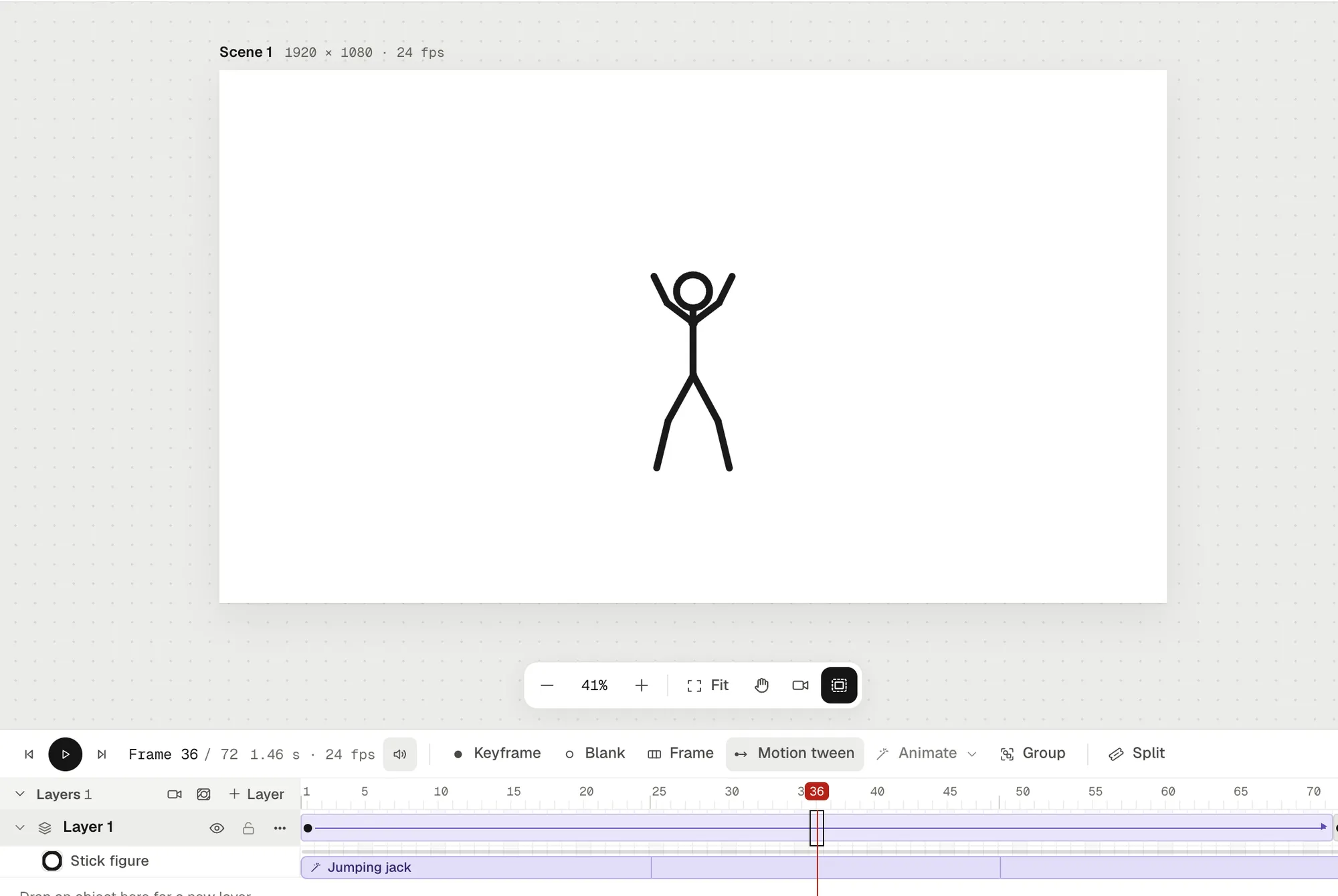
Animperia is a 2D animation studio that runs in your web browser, on Windows, Mac or Linux. It isn’t a copy of Pivot, but the core idea is the same: a figure made of parts that turn at joints, posed frame by frame. Below is a fair comparison, and a stick figure we drew and rigged in a few minutes to show how it works.
Is there an official Pivot Animator online or for Mac?
No. As of 11 October 2026, Pivot Animator’s official download page offers version 5.2.11, updated on 13 May 2025, and says Pivot “is currently only available for Windows”. It asks for Windows 7 SP1 or later, recommends Windows 10 or 11, and needs a graphics card with DirectX 11 or later (pivotanimator.net). We found no official web, Mac or Linux version. Pages that offer it for those systems are third-party sites.
If you have Windows, Pivot is a fine choice and you don’t need anything else. If you don’t, read on.
Pivot Animator and Animperia side by side
| Pivot Animator | Animperia | |
|---|---|---|
| Where it runs | A Windows app (pivotanimator.net) | A desktop browser on Windows, Mac or Linux |
| Price | Free; it’s freeware (Wikipedia) | Free during the beta |
| Figures | Built from segments in its figure builder, or loaded as STK files, with a library of them on its site (pivotanimator.net) | Drawn with vector tools, or imported as SVG, then cut into parts that hang from each other |
| Posing | Drag the handles on the figure (pivotanimator.net) | Drag the joints; a wrist or an ankle bends the whole arm or leg |
| In-betweens | Insert in-between frames into the timeline (pivotanimator.net) | Frames between your poses follow by themselves, with easing; motion tweens on the scene’s timeline |
| Backgrounds | Load your own (pivotanimator.net) | Upload your own pictures as backgrounds |
| Export | Animated GIFs and videos (pivotanimator.net) | MP4 at 720p or 1080p, GIF, see-through MOV and WebM, green-screen MP4, PNG images |
| Offline | Yes, once it’s installed | No: it needs an internet connection |
Pivot’s details are from its official site and Wikipedia, checked on 11 October 2026.
Draw and rig a stick figure in a few minutes
Here’s how we made the figure above. You’ll need a free Animperia account.
1. Draw it
Create a project, then in the library click +, pick Object, choose Blank canvas, name it Stick figure and press Start drawing. Pick the line tool (N), set Line width to about 26, and draw a line for the body and two lines for each arm and each leg: upper arm and forearm, thigh and shin. Add a circle for the head with the ellipse tool (O).
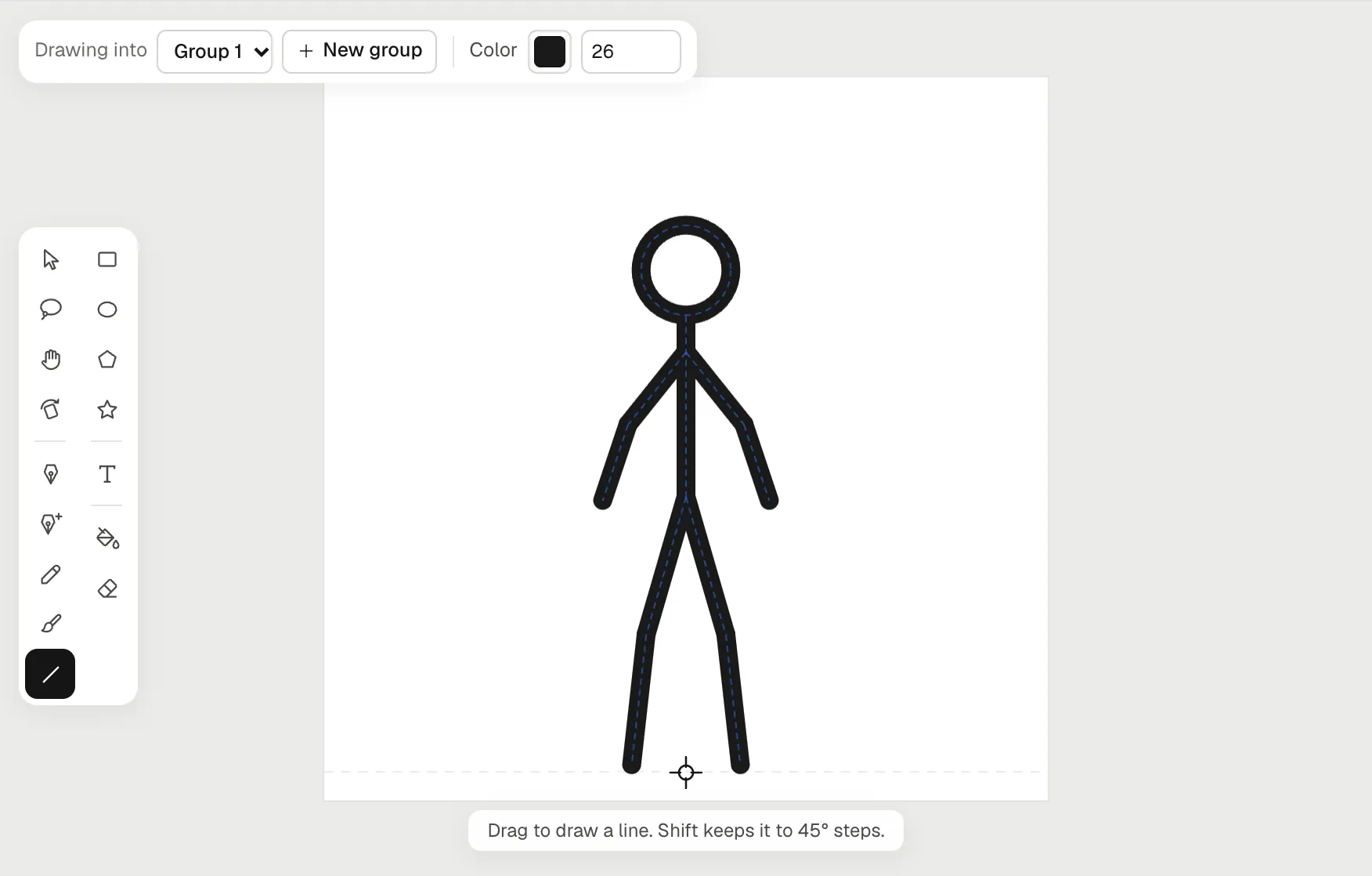
2. Make the parts
Double-click a line to select it and press ⌘G (Ctrl+G on Windows and Linux). The Make as body part dialog asks which part it is: click Left arm for the upper left arm, and it’s attached to the body, turning where they meet. For the lower half of each limb, type a name such as Left forearm, choose Forearm as its Kind and Left arm under Attached to. Do the same for the legs (with Shin and the leg above), and make the circle the Head. Whatever you don’t make a part, here the body line, stays the main part.
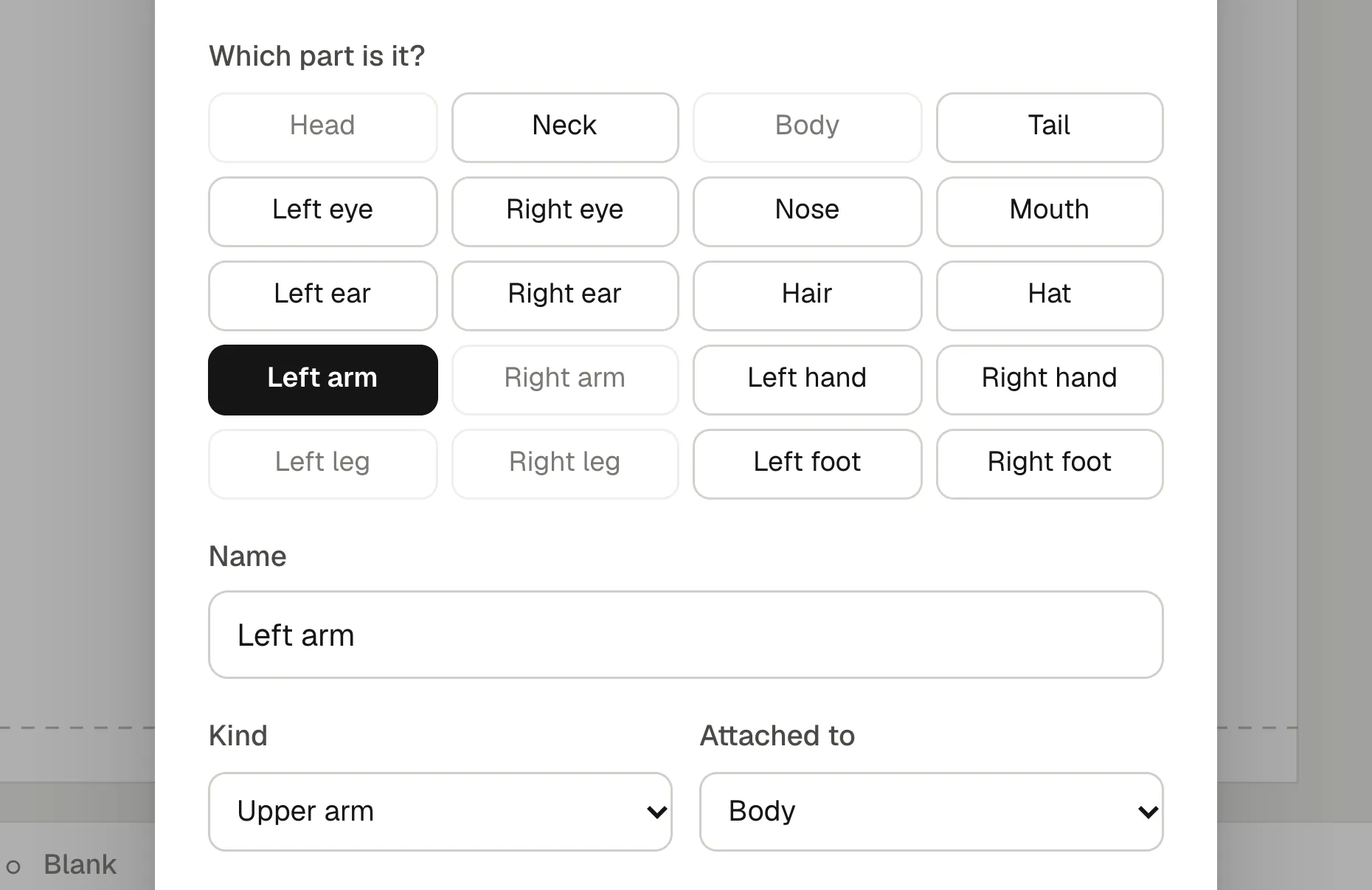
3. Check the joints
Press M for the Bone tool. Each part shows a bone from its parent’s joint to its own, at the shoulders, elbows, hips, knees and neck. If a joint sits in the wrong place, drag it. Then press Save.
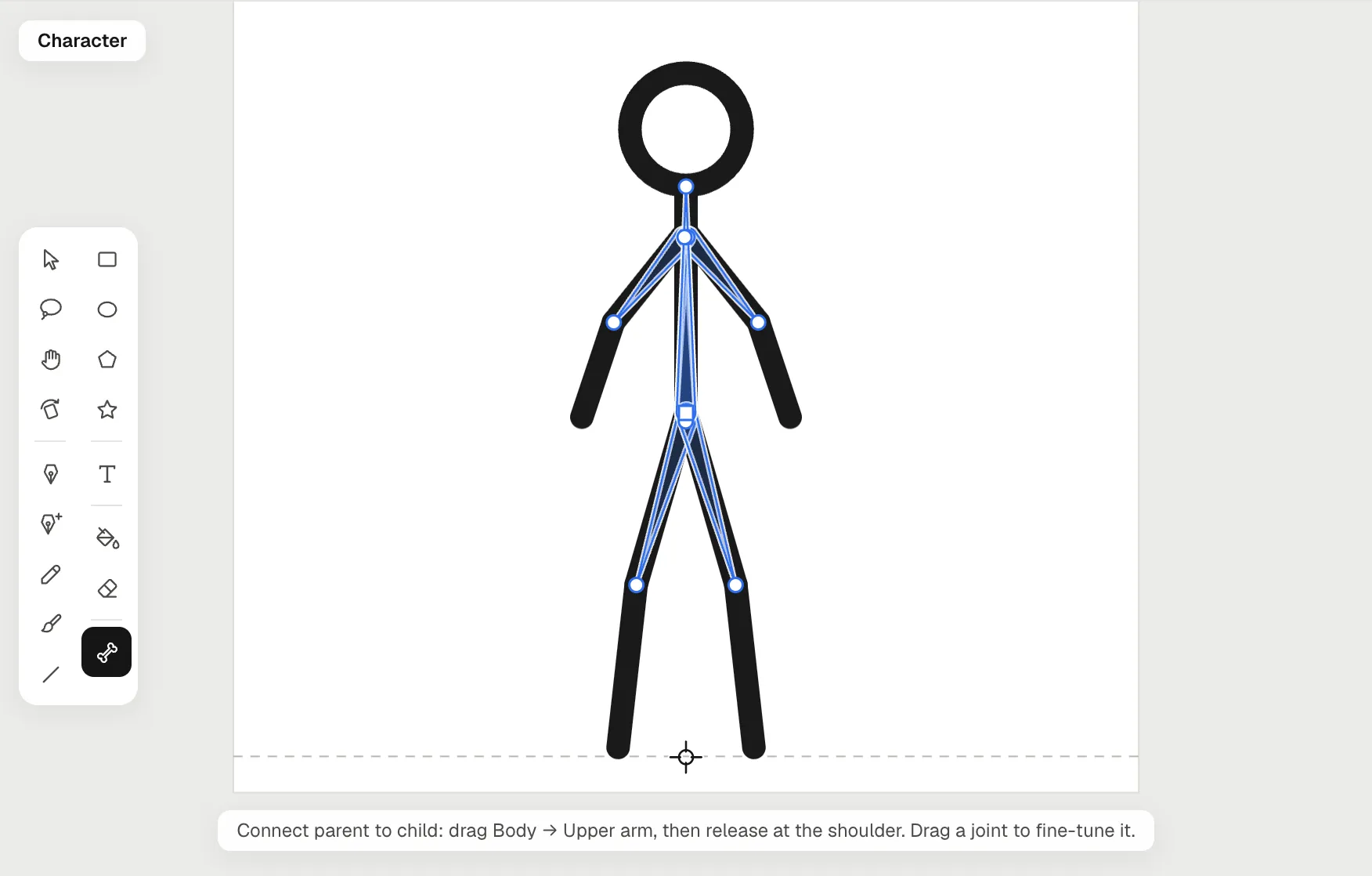
4. Animate it
Under Animations, click Add, choose Hands-on, call it Jumping jack, make it one second long and tick Cycle, so it loops. Press Pivots to show the joints and go to frame 13. Drag an elbow to swing the whole arm up from the shoulder, then drag the end of the forearm to bend it over the head; do the same with the knees and the shins. On frames 7 and 19 we lifted the whole figure a little for a hop. (Give each limb a hand or a foot as a third part, and dragging it bends the whole arm or leg at once.) With Onion skin on, you see the frames before in blue and after in green.
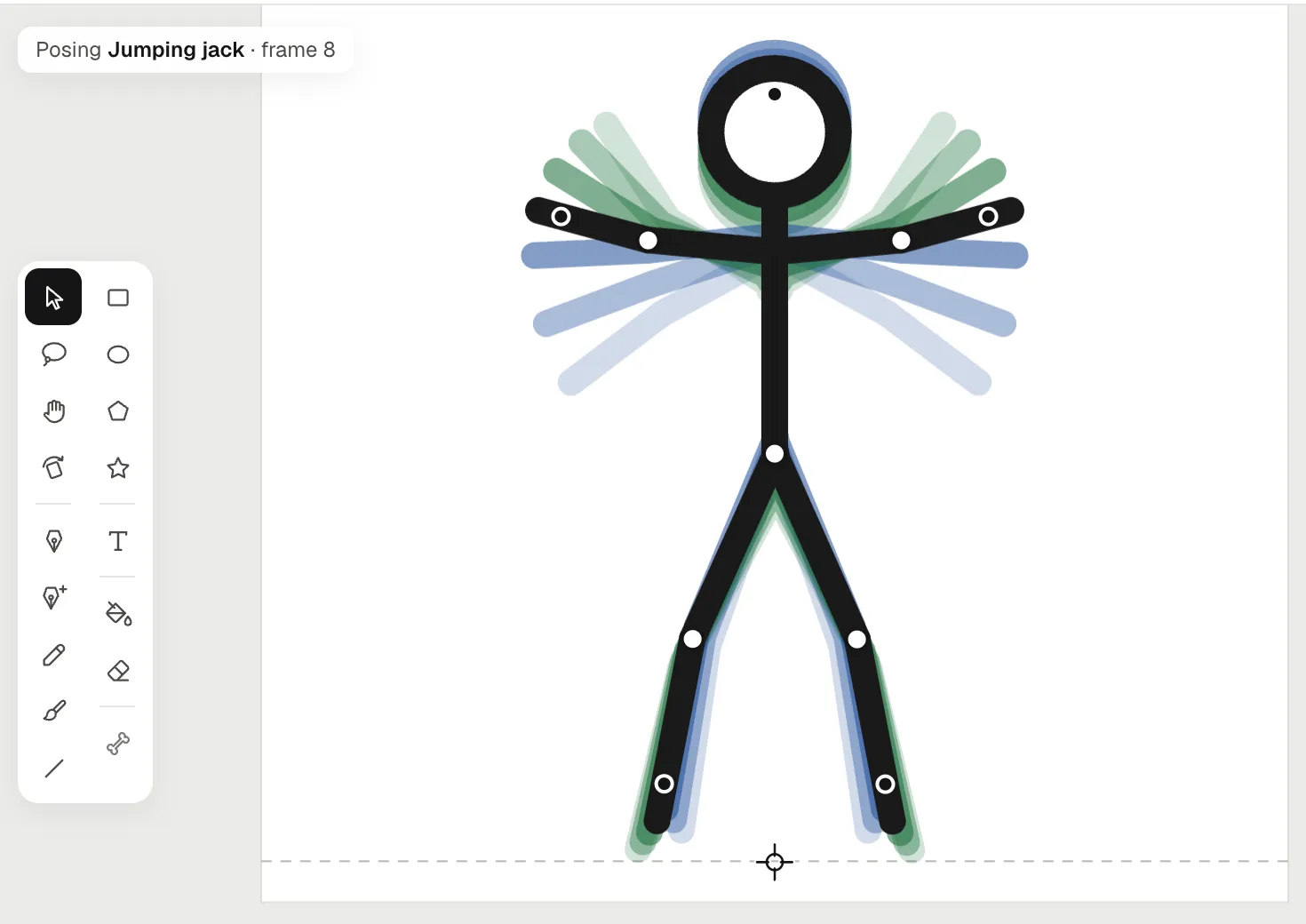
That’s a handful of poses for 24 frames. The frames between them follow on their own, easing in and out.
5. Put it in a scene
Close the drawing editor, click the figure in the library and press Add to scene. On the scene’s timeline, add a keyframe on frame 72 with F6, drag the figure across the stage, and press Motion tween so it travels. Then select its frames, open Animate and pick Jumping jack: it jumps all the way across. Export in the top bar makes an MP4 or a GIF.
What Pivot does better
- It’s simpler. Pivot is built around stick figures, and you can start in seconds. Animperia is a full studio, so there’s more to learn.
- It works offline once it’s installed.
- Its figure library. Pivot has a library of ready-made figures to download. Animperia can’t open Pivot’s STK files, and it has no ready-made stick figure yet, so you draw your own as above.
What Animperia adds
- Any character, not just sticks. Draw a full cartoon character, or import one as SVG, and rig it the same way. See 2D rigging.
- Sound and voices. Put music and sound effects on the timeline, and drop a voice line on a character to make its mouth move with the words.
- Scenes, a camera and layers. Build a short film from several scenes, with camera moves and masks.
- Reusable animations. Animate a walk or a punch once and play it as often as you like. Our guide on animating without drawing every frame shows how.
- Drawing on frames when posing isn’t enough: effects, smears and dust, with a brush and onion skin. See frame-by-frame animation.
Questions
Is Animperia free?
Yes, it’s free during the beta. Sign up with your email. Accounts are for people aged 13 and over.
Does it work on a Chromebook, an iPad or a phone?
We don’t promise those yet. Animperia is made for a desktop browser on Windows, Mac or Linux, and we test it in Google Chrome.
Can I import my Pivot figures or animations?
No. Animperia can’t read Pivot’s files. You can draw the figure again in a few minutes, as above, but the animation itself has to be posed again.
How do I rig something more complex than a stick figure?
The steps are the same, with more parts and more care at the joints. Our guide shows how to rig a 2D character, from planning the parts to the first animation.
About this comparison
This page compares Animperia as it is on 11 October 2026 with Pivot Animator as its official site and Wikipedia describe it, in the pages linked above. Pivot Animator is a product of its developer. Animperia isn’t affiliated with or endorsed by Pivot Animator or its developer.