How to make an animation meme on your PC
Updated
An animation meme, or cartoon meme, is a short video where an original character, your OC, acts and lip-syncs to an audio clip: a few lines of a song, a viral sound or a voice line. Most last from a few seconds to a minute, often as a loop, and end up as YouTube Shorts or TikToks.
This guide makes one with Animperia, a 2D animation studio in a desktop browser on Windows, Mac or Linux. The example is Bean, a character drawn for this guide, singing a tune made for it.
1. Pick and trim the audio
Start with the sound: it sets the timing of everything. A good meme audio is short, with one clear voice and a moment to react to, like a high note or a punchline.
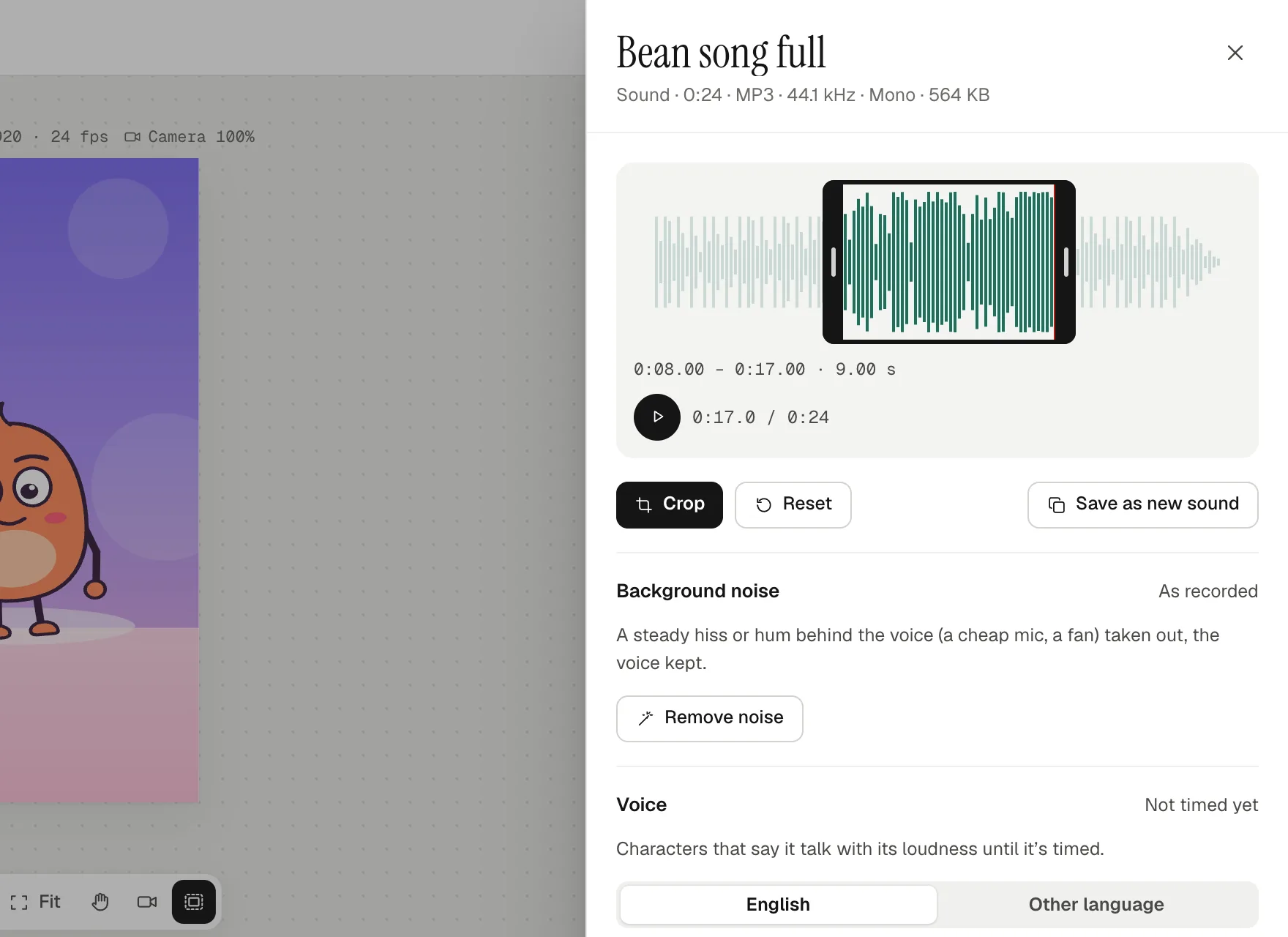
In Animperia, click + in the library and pick Sound to upload it. Click the sound to open its drawer, then drag the bars at each end of the waveform to the part you need. Page Up and Page Down move a selected bar a second at a time, and the arrow keys a hundredth of a second. Crop keeps just that part, and Save as new sound saves it as a sound of its own, leaving the recording whole.
Animation memes without copyright problems
A popular song is someone else's copyright, and animating over it doesn't make it yours. YouTube scans every upload with Content ID, and when a video matches a copyright owner's file, the owner can block it, put ads on it or track its views (YouTube Help, checked 15 October 2026). Shorts longer than one minute with an active Content ID claim are blocked (YouTube Help, checked 15 October 2026).
The safest audio, from safest down:
- Your own voice. Say the line or sing it yourself.
- Music you made, or have a license for, such as tracks from YouTube's Audio Library of royalty-free music in YouTube Studio. Its Creative Commons tracks need a credit in your description (YouTube Help, checked 15 October 2026).
- A sound from the platform's own tools. In the YouTube app, Use this sound starts a Short with the audio of another Short or video: up to 90 seconds of a music video, or 30 seconds for some. YouTube says some remixed Shorts with music can still be blocked, depending on the music's licenses (YouTube Help, checked 15 October 2026).
This isn't legal advice. When in doubt, use a sound you made.
2. Set up the project
On the projects page, name the project and pick a Canvas: Portrait 9:16 (1080 × 1920) for Shorts, TikTok and Reels, or Landscape 16:9 for a regular YouTube video. Then pick the Frame rate, which stays as you pick it: 24 fps is smooth, 12 fps choppier and more hand-made.
On a tall frame, keep the face clear of the bottom of the screen, where the apps put their captions. Our YouTube Shorts guide has the safe areas.
3. Get your OC ready to sing
Draw your character on a Blank canvas (the library's +, then Object), or import it from Illustrator, Inkscape or Figma as an SVG file with This is a character ticked: each group becomes a part, and groups inside it hang from it. Bean came in as 12 parts.
What makes it sing is a part of the kind Mouth. Name the mouth group Mouth in your file, or select the mouth's shapes in the drawing editor, press ⌘G (Ctrl+G on Windows) and pick Mouth. Properties then shows Kind: Mouth.
Under the mouth in the part list, Mouth shapes holds the eight shapes it talks with, plus Rest, made at first from the mouth you drew. For singing, make the open ones bigger: singers hold their vowels, and a small mouth on a long note looks like humming. We scaled up Open, Wide, Round and Pucker with the W and H fields. Talk test plays them in a row.
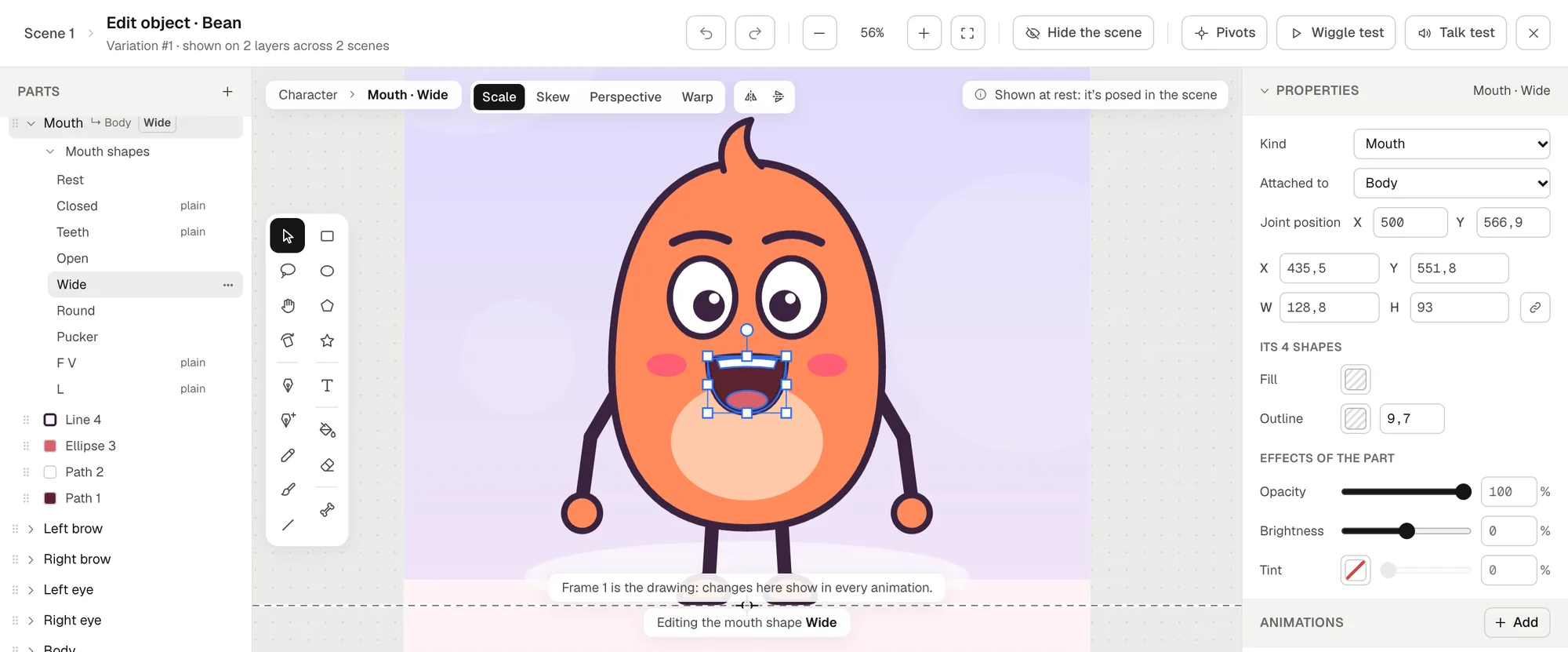
Which shape goes with which sound? The lip sync guide has a free mouth chart.
4. Lip-sync it to the song
Drag the sound from the library onto your character on the stage, or right-click the character, pick Give a voice…, and choose English or Other language. The sound goes on a sound layer of its own, said by the character, and it's timed in a few seconds. From then on the mouth follows it on the stage, frame by frame as you step through, and in the export. It works the same for talking: drop a voice line instead of a song. The lip sync page has the details.
Singing over music: time it from the vocals
Lip sync listens for a voice, and music gets in the way. We timed Bean's song twice, whole and as a vocals-only copy:
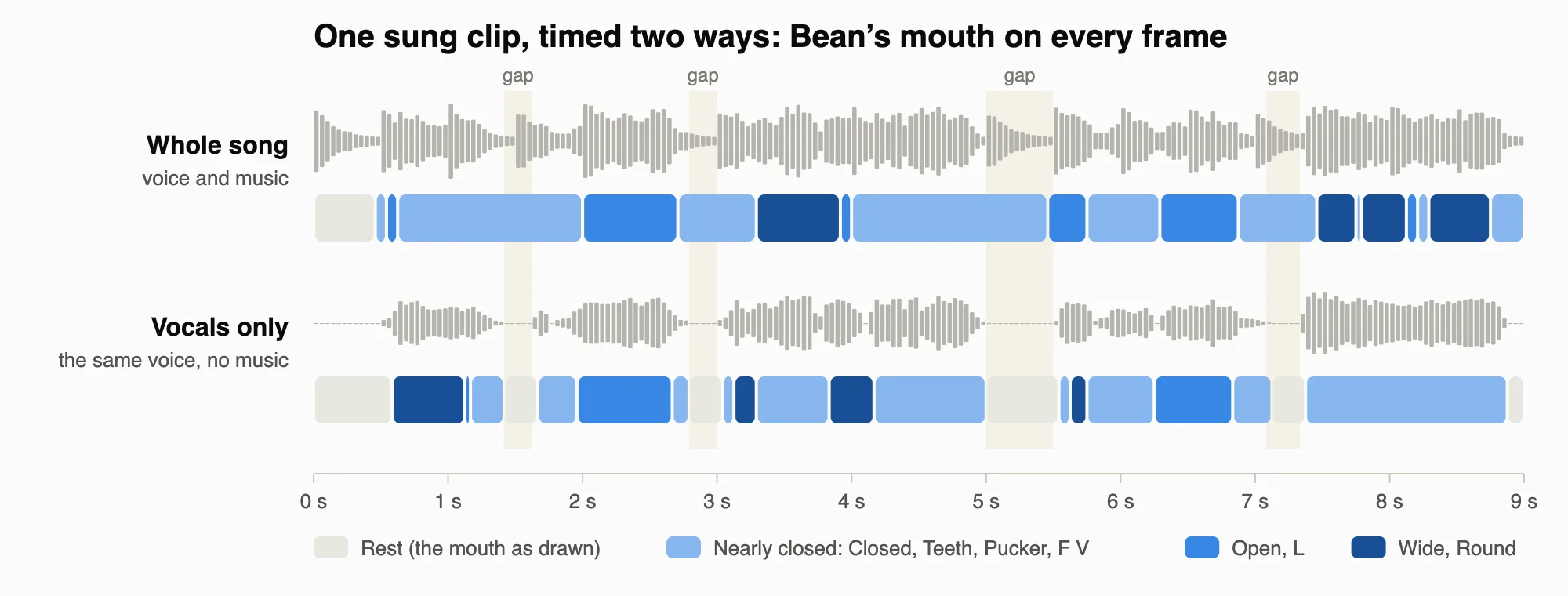
With the music in, the mouth never closed in the pauses, and timed as Other language it moved before the singing even began. The vocals alone gave clean rests and wider vowels. So time the mouth from vocals whenever you can:
| What you have | What to do |
|---|---|
| Your own voice line | Drop it on the character. |
| Vocals and music as two files | Vocals on the character, the music on a sound layer of its own. |
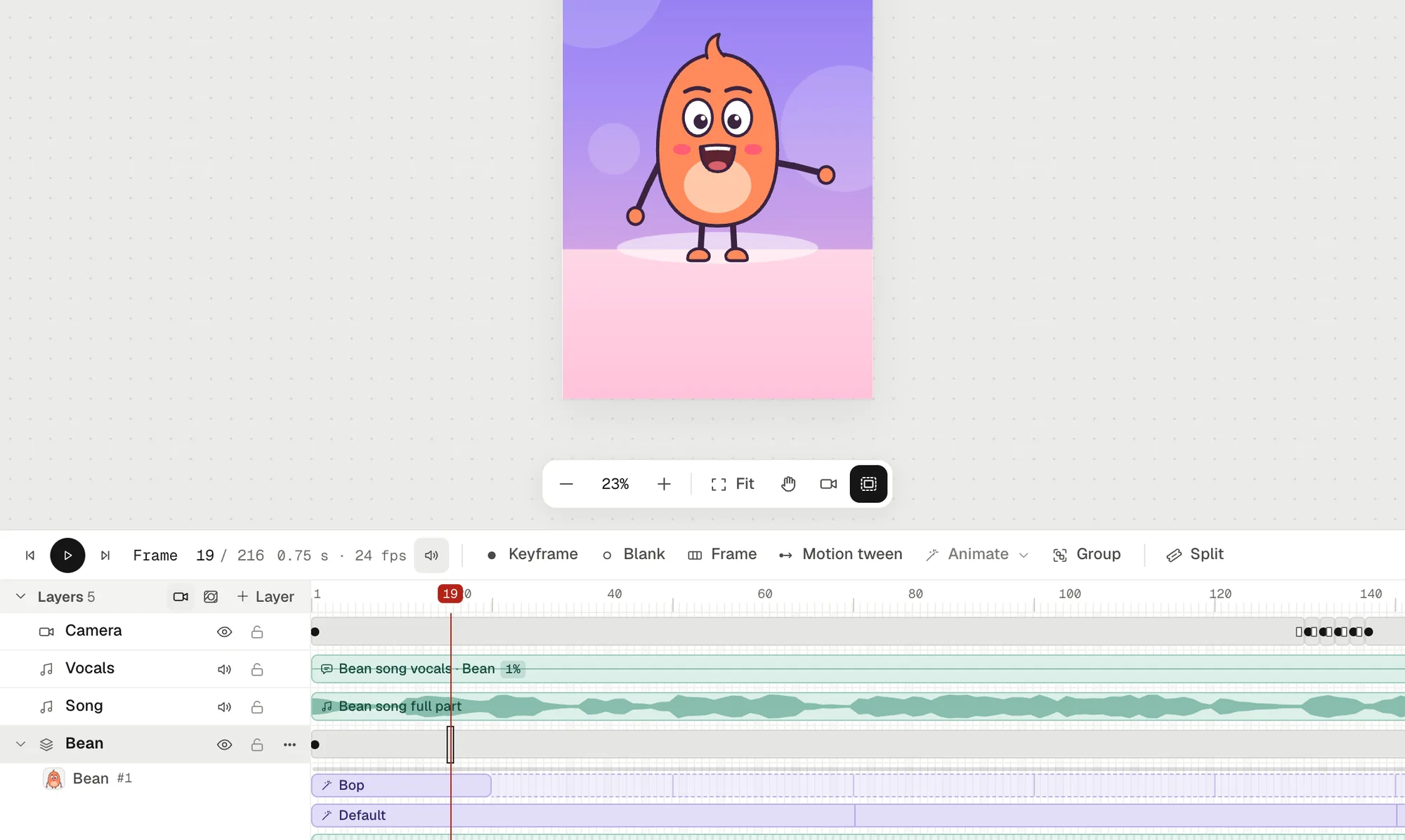
| The song and a vocals-only copy | Vocals on the character at 1% volume, the song on its own layer, both from frame 1. |
| Only the song | Drop it on the character, then fix the pauses by hand (below). |
Why 1%? At 0% volume the mouth stays still, but at 1% it moves and nobody hears the extra vocals. The volume is in the clip's Options… (double-click it).
Fix the mouth by hand
- The mouth stays open in a pause: select the clip, put the playhead where the pause starts and press ⌘B (Ctrl+B) to split it, then split it again where the pause ends. In the middle part's Options…, untick the lip sync box. The song plays on, and the mouth rests.
- The mouth feels late: Mouth timing, in the same options, moves it up to 5 frames ahead of the voice.
- A shape looks wrong: redraw it under Mouth shapes.
5. Make it move like a meme
Pose on the beats. Right-click your character and pick Animate here. The drawing editor opens over the scene, with the song in a Scene sound row. Select a part, type its Rotation or Scale, step to the next beat and pose again. Bean's bop is 24 frames with Cycle on: a lean to one side with an arm up on frame 1, the mirror image on frame 13. Back in the scene, double-click the clip and pick Keep playing to the end.
Frames per beat = frame rate × 60 ÷ the song's BPM. Or find the beats by ear: stepping with , and . plays each frame's sound.
| Tempo | At 24 fps | At 30 fps |
|---|---|---|
| 90 BPM | 16 frames | 20 frames |
| 120 BPM | 12 frames | 15 frames |
| 150 BPM | 9.6 frames | 12 frames |
Zoom on the drop. Add a camera with the camera button next to + Layer. On the beat, press Keyframe (F6) on its layer and raise the Camera tool's Zoom. For a shake, add keyframes two frames apart and nudge X by 10 to 15 pixels each time.
Change the face. In the character's drawer, Duplicate a variation and give the copy bigger eyes or raised brows. On the beat, press F6 on the character's layer and pick the copy in the stage toolbar's Variation menu: it shows from that keyframe on.
Blink on a loop. A character's Default timeline plays by itself, round and round. Open it with Edit object, press F5 until it's 3 seconds long, tick Only this frame, and set the eyes' Scale Y to 0.1 on two frames.
Loop it cleanly. End where you started: a whole number of dance loops (Bean's 9 seconds are nine bops), the camera zoomed back out and the mouth at rest. One catch: when a sound makes the scene longer, the background's layer doesn't grow, so press F5 on it at the last frame.
6. Pick a simple background
An animation meme background is there to make your character pop. A soft gradient, a few round shapes and a floor are plenty, and they keep the eye on the face. Pick colors that contrast with your OC: Bean is orange, so its stage is lavender and pink.
Make the picture in any paint app at the canvas size, 1080 × 1920 for portrait. In the library, click +, pick Background and upload it on Hands-on. It's ready right away, scaled to cover the canvas.
7. Export the video
Click Export, keep Video (MP4) and pick 1080p, which is 1080 × 1920 on a portrait canvas. The MP4 has the song mixed in and downloads by itself. For chats, make a cartoon GIF; to put your OC over other footage, export with a transparent background.
Keep it as a template
When a meme works, make it your template: on the projects page, pick Duplicate in the project's ⋯ menu. The copy has the same characters, animations, backgrounds, sounds and scenes, so the next meme starts with a new sound.
Animation meme ideas
- Meet my OC: your character says its name and one fact about itself, in your voice.
- The reaction loop: a still pose, a beat, then a big reaction.
- The duet: two OCs, each singing its own vocals in turn.
- The outfit swap: a new variation on every beat of the chorus.
- A tune of your own: hum a melody, and let your OC perform it.
- A story instead: a longer true story, told in your own voice: how to make a storytime animation.
Questions
What does "animation meme" mean?
A short animated video, usually made by one person, where an original character acts out a sound clip. The audio comes first; the joke is in the acting and the timing.
Can I make an animation meme on my phone?
Not with Animperia: it's made for a desktop browser on Windows, Mac or Linux, and we test it in Google Chrome. Animate on a computer, then post from your phone. Coming from a phone app? See how Animperia compares with FlipaClip.
Do I need a drawing tablet?
No. Simple shapes, an SVG import, typed pose values and automatic lip sync all work with a mouse.
Can I use any song?
You can animate to any song, but posting it is another matter: see the copyright section above. Your own voice is always safe.
Is it free?
Yes, Animperia is free during the beta, and the videos have no watermark. Sign up for the beta: while it has room, you get a link to set your password and start.
How long can it be?
Most are 5 to 30 seconds. A scene in Animperia holds up to 10,000 frames, about 7 minutes at 24 fps, and YouTube counts square and vertical videos up to three minutes as Shorts (YouTube Help, checked 15 October 2026). Keep it under a minute if the song isn't yours.
YouTube is a trademark of Google LLC. Animperia isn't affiliated with or endorsed by YouTube, TikTok, Instagram or FlipaClip.